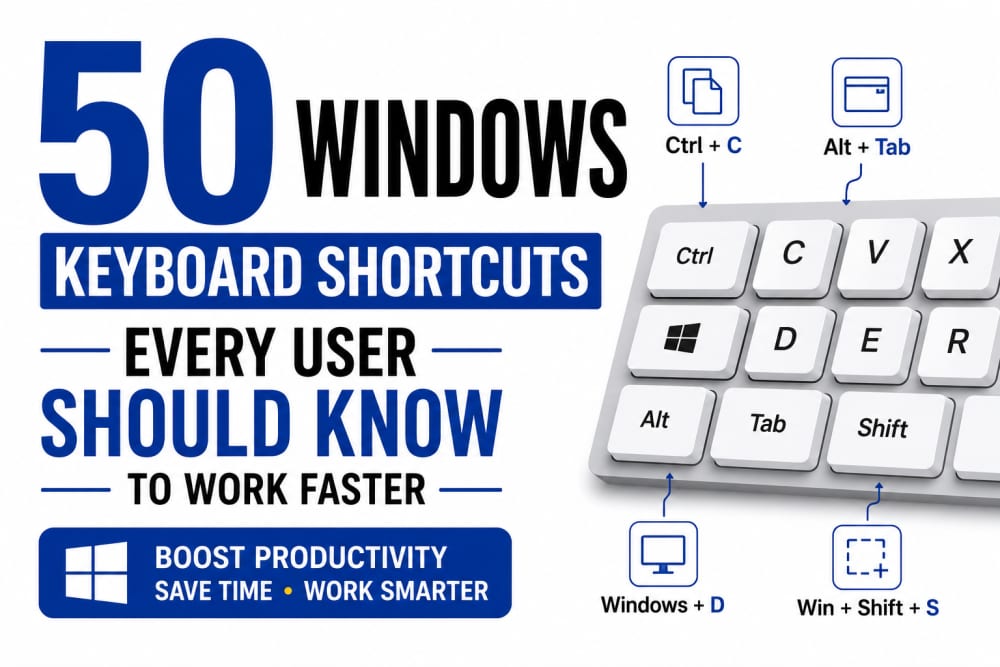
50 Windows Keyboard Shortcuts Every User Should Know to Work Faster
Most Windows users spend years using their computers without realizing how much time they could save by learning a few keyboard shortcuts.
Instead of moving your hand from the keyboard to the mouse hundreds of times a day, keyboard shortcuts allow you to perform common tasks instantly. Whether you're a student writing assignments, an office worker managing documents, an ICT professional troubleshooting systems, or simply someone who uses a computer daily, keyboard shortcuts can significantly improve productivity.
As an ICT professional, one thing I have noticed while assisting users is that many people know how to use Windows, but very few know how to use it efficiently. Tasks that take one person thirty seconds can take another person only two seconds, simply because they know the right shortcut.
The good news is that you don't need to memorize dozens of shortcuts overnight. Even learning five to ten shortcuts can make a noticeable difference in your daily workflow.
In this guide, we'll explore 50 of the most useful Windows keyboard shortcuts, explain what they do, and show when you should use them.
Quick Navigation
Essential Everyday Shortcuts
These are the shortcuts every Windows user should know.
1. Ctrl + C
Copies selected text, files, or folders.
2. Ctrl + V
Pastes copied content.
3. Ctrl + X
Cuts selected content.
4. Ctrl + Z
Undoes the last action.
Accidentally deleted text? Press Ctrl + Z.
5. Ctrl + Y
Redo an action that was undone.
6. Ctrl + A
Selects everything in a document, folder, or webpage.
7. Ctrl + S
Saves your work.
One shortcut that every student and office worker should use frequently.
8. Ctrl + P
Opens the print menu.
9. Alt + Tab
Switches between open applications.
This is one of the biggest productivity boosters in Windows.
10. Windows + D
Shows the desktop instantly.
Press it again to restore all windows.
File Explorer Shortcuts
File management becomes much easier with these shortcuts.
11. Windows + E
Opens File Explorer immediately.
One of the most frequently used shortcuts by ICT professionals.
12. F2
Renames the selected file or folder.
13. Ctrl + Shift + N
Creates a new folder.
14. Alt + Enter
Displays file properties.
Useful when checking:
-
File size
-
Date modified
-
Permissions
15. Delete
Moves selected items to the Recycle Bin.
16. Shift + Delete
Permanently deletes files.
Use carefully.
17. Ctrl + Mouse Wheel
Change the folder icon size.
Useful when browsing images.
18. Backspace
Moves back to the previous folder.
19. Alt + Left Arrow
Navigates backward.
20. Alt + Right Arrow
Navigates forward.
Window Management Shortcuts
Managing multiple applications becomes easier with these shortcuts.
21. Windows + Left Arrow
Snaps a window to the left side.
22. Windows + Right Arrow
Snaps a window to the right side.
Great for multitasking.
23. Windows + Up Arrow
Maximizes a window.
24. Windows + Down Arrow
Minimizes or restores a window.
25. Windows + Tab
Opens Task View.
Shows all open windows and virtual desktops.
26. Windows + Home
Minimizes all windows except the active one.
27. Windows + M
Minimizes all windows.
28. Windows + Shift + M
Restores minimized windows.
29. Alt + F4
Closes the current application.
30. Ctrl + Shift + Esc
Opens Task Manager instantly.
A favorite shortcut among IT support staff.
Text Editing Shortcuts
These shortcuts are incredibly useful when writing documents, emails, and reports.
31. Ctrl + Backspace
Deletes an entire word.
32. Ctrl + Left Arrow
Moves one word backward.
33. Ctrl + Right Arrow
Moves one word forward.
34. Home
Moves the cursor to the beginning of a line.
35. End
Moves the cursor to the end of a line.
36. Ctrl + Home
Moves to the beginning of a document.
37. Ctrl + End
Moves to the end of a document.
38. Shift + Arrow Keys
Selects text.
39. Ctrl + B
Makes text bold.
40. Ctrl + I
Italicizes text.
Browser Shortcuts
These shortcuts work in most modern browsers.
41. Ctrl + T
Opens a new tab.
42. Ctrl + W
Closes the current tab.
43. Ctrl + Shift + T
Reopens the last closed tab.
This shortcut has saved many users from panic.
44. Ctrl + L
Highlights the address bar.
45. Ctrl + F
Searches for text on a webpage.
46. Ctrl + D
Bookmarks the current page.
47. Ctrl + R
Refreshes the webpage.
48. Ctrl + Tab
Moves between tabs.
Screenshots and Recording
Capturing screens is easier than ever in Windows.
49. Windows + Shift + S
Opens the Snipping Tool.
Allows you to capture specific portions of the screen.
50. Windows + Print Screen
Captures the entire screen and saves it automatically.
Screenshot files are stored in:
Pictures
   └── Screenshots
Bonus Troubleshooting Shortcuts
These are worth knowing even though they're not in the main 50.
Windows + R
Opens the Run dialog.

Useful commands include:
cmd
msconfig
services.msc
control
Windows + I
Opens Settings.
Windows + X
Opens the Power User Menu.
Windows + Pause
Displays system information.
Windows + Ctrl + Shift + B
Restarts the graphics driver.
Very useful when the display freezes.
Power User Shortcuts
For users who want to take Windows productivity further.
Windows + V
Opens Clipboard History.
Windows +.
Opens the Emoji Panel.
Windows + Ctrl + D
Creates a new virtual desktop.
Windows + Ctrl + Left Arrow
Switches to the previous virtual desktop.
Windows + Ctrl + Right Arrow
Switches to the next virtual desktop.
Why Keyboard Shortcuts Matter
Many people view shortcuts as optional.
In reality, they are one of the simplest ways to improve efficiency.
Let's do a simple calculation.
Suppose using a mouse takes:
5 seconds
to perform an action.
A shortcut takes:
1 second.
You save:
4 seconds per action.
Perform that action:
100 times per day.
You save:
400 seconds daily.
That is more than 6 minutes every day.
Over a year, the time savings become substantial.
My Experience Using Keyboard Shortcuts
While working with computers and supporting users, I have noticed a pattern.
Users who know keyboard shortcuts generally:
-
Work faster
-
Navigate Windows more confidently
-
Troubleshoot more efficiently
-
Experience less frustration
The difference is particularly noticeable in office environments where employees spend hours working on computers.
Learning shortcuts is similar to learning touch typing.
At first, it feels unnecessary.
Later, you wonder how you ever worked without it.
Final Thoughts
Windows includes hundreds of keyboard shortcuts, but most users only need a small selection to become significantly more productive.
If you're just getting started, focus on these ten first:
-
Ctrl + C
-
Ctrl + V
-
Ctrl + Z
-
Ctrl + S
-
Alt + Tab
-
Windows + D
-
Windows + E
-
Windows + Shift + S
-
Ctrl + Shift + Esc
-
Windows + R
Master those, and you'll already be working faster than many Windows users.
Technology is not always about having the latest computer or the fastest processor. Sometimes, the biggest productivity improvements come from learning better ways to use the tools you already have.
Keyboard shortcuts are one of those tools.
The more you use them, the more natural they become nd the more time you save every day.
References
About the author
Caleb Muga is the founder of SurgeTechKnow, an ICT professional and software developer with BBIT, CCNA training, cybersecurity awareness and OPSWAT file-security training. Articles are written to simplify practical technology, cybersecurity, networking and ICT support topics for real users.
Read the full SurgeTechKnow profile →