A Complete Guide to Routers: Configuration, Security, Performance, and Troubleshooting
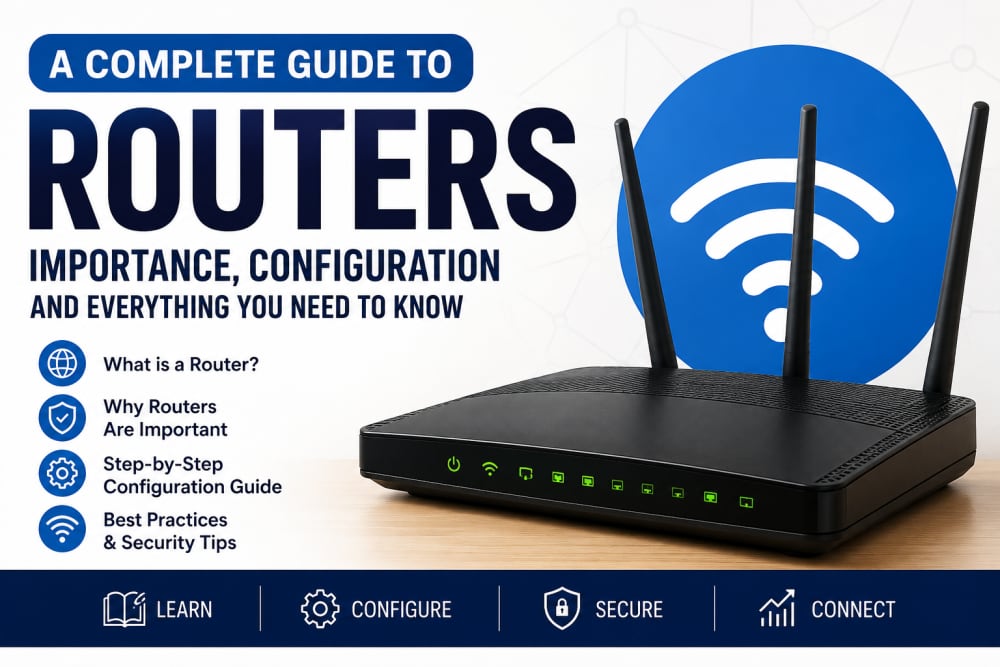
A router is the small device that quietly controls how your home, office, school, or business connects to the internet. When it is configured well, everything feels smooth: phones connect, laptops browse, smart TVs stream, printers respond, and security cameras stay online.
When it is configured poorly, the same router becomes the reason behind slow Wi-Fi, unstable connections, exposed devices, weak passwords, unauthorized access, and unnecessary security risks.
Many people only think about their router when the internet stops working. In my experience supporting users and working around ICT systems, this is one of the biggest mistakes. Your router is not just a box for Wi-Fi. It is your network gatekeeper, traffic controller, security checkpoint, and internet sharing device all in one.
This guide explains what a router is, why it matters, how it works, how to configure it properly, how to secure it, and how to troubleshoot common problems. It is written for beginners, students, home users, office users, and ICT learners who want to understand routers.
What Is a Router?
A router is a networking device that forwards data between different networks. In simple terms, it helps your devices communicate with the internet and with other devices inside your local network.
At home, your router connects devices such as smartphones, laptops, smart TVs, printers, tablets, security cameras, gaming consoles, and desktop computers. In an office, a router may connect staff computers, VoIP phones, CCTV systems, access points, servers, and cloud applications.
In larger organizations, routing may be handled by enterprise routers, firewalls, or layer-3 switches. The basic idea remains the same: a router decides where network traffic should go.
When you open a website, your laptop sends a request. That request travels through your router, then through your internet service provider, and eventually to the website server. When the website responds, the router helps send the data back to the correct device.
Without routing, data would not know where to go.
Why a Router Is Important
A router is important because it sits at the center of your network. It affects internet speed, Wi-Fi coverage, security, device management, parental controls, and network reliability.
Many users blame the internet service provider whenever the connection is slow. Sometimes the ISP is responsible, but many times the router is the real problem.
A weak router can cause slow browsing, Wi-Fi dead zones, frequent disconnections, poor video calls, high gaming latency, printer connection issues, and unstable smart devices.
A properly configured router improves internet sharing, Wi-Fi coverage, network security, device organization, traffic control, and troubleshooting visibility.
From a cybersecurity perspective, the router is also one of the first devices attackers may target. CISA advises users to change default router credentials, update firmware, and secure wireless networks because routers and Wi-Fi access points are common entry points into home and small office networks. You can read CISA’s guidance on home network security and on securing wireless networks.
Router vs Modem vs Switch
Many people confuse routers, modems, and switches. They are related, but they do different jobs.
What Is a Modem?
A modem connects your home or office to your internet service provider. Depending on your ISP, this may be a fiber terminal, cable modem, 4G/5G modem, or DSL modem.
The modem brings the internet connection into your premises.
What Is a Router?
The router shares that internet connection with multiple devices. It also manages IP addresses, routes traffic, applies Wi-Fi settings, and may provide firewall protection.
What Is a Switch?
A switch connects multiple wired devices inside the same local network. It is common in offices, labs, cyber cafés, schools, and businesses with many Ethernet-connected devices.
A simple way to remember it:

Some ISP devices combine modem, router, switch, and Wi-Fi access point functions into one box. That is why many users call everything a router, even when the device performs several roles.
How a Router Works

A router works by receiving data packets, checking their destination, and forwarding them through the correct path.
Inside your home network, the router may use private IP addresses such as:
192.168.0.1
192.168.1.1
10.0.0.1
Your phone or laptop may receive an address like:
192.168.1.25The router itself usually has one local address, often called the default gateway. When your device wants to reach the internet, it sends traffic to the router.
The router then uses Network Address Translation, commonly called NAT, to allow many private devices to share one public IP address. This is why your phone, laptop, and smart TV can all use the same internet connection at the same time.
Another important service is DHCP. DHCP automatically assigns IP addresses to devices. Without DHCP, you would need to manually configure IP addresses for every phone, laptop, printer, and tablet.
DNS also matters. DNS helps convert website names into IP addresses. When you type a website address, your device needs DNS to find where that website is located. Cloudflare explains DNS as part of how internet traffic is directed and resolved in its DNS documentation.
Key Router Features You Should Know
Not all routers are the same. Some are basic home routers, while others are advanced business-grade devices with deeper security and management features.
1. Wi-Fi Bands
Most modern routers support 2.4 GHz and 5 GHz Wi-Fi. Newer models may support 6 GHz through Wi-Fi 6E or Wi-Fi 7.
2.4 GHz usually has better range and wall penetration but slower speeds. 5 GHz is faster but has a shorter range. In many homes, 2.4 GHz works better for distant rooms, while 5 GHz works better near the router.
2. DHCP Server
This automatically gives IP addresses to devices. It prevents address conflicts and makes connection easier.
3. NAT
NAT allows many private devices to share one public internet address.
4. Firewall
Many routers include a basic firewall that blocks unwanted inbound traffic from the internet.
5. Guest Network
A guest network allows visitors to use your internet without accessing your main devices.
6. Parental Controls
Some routers allow blocking specific sites, limiting usage times, or controlling devices.
7. QoS
Quality of Service helps prioritize important traffic such as video calls, online classes, or gaming.
8. Firmware Updates
Firmware is the router’s internal software. Updating it can fix bugs, improve stability, and patch security weaknesses.
Before Configuring a Router
Before changing router settings, prepare carefully. Many users rush into configuration and accidentally break connectivity.
Start by collecting the router brand and model, admin login address, admin username and password, ISP connection details if required, current Wi-Fi name and password, and the list of devices that depend on the network.
Common router admin addresses include:
192.168.0.1
192.168.1.1
192.168.8.1
10.0.0.1
You can usually find this information on the router label or from the default gateway shown on your computer.
On Windows, you can check your gateway by opening Command Prompt and typing:
ipconfigLook for:
Default GatewayThat address is usually your router.
Step-by-Step Router Configuration Guide
The exact interface varies depending on whether you use a TP-Link, Tenda, Huawei, D-Link, MikroTik, Netgear, Safaricom router, Zuku router, or another model. However, the general process is similar.
Step 1: Connect to the Router
Connect your phone or laptop to the router using Wi-Fi or an Ethernet cable. Ethernet is preferred during initial setup because Wi-Fi settings may change during configuration.
Step 2: Open the Admin Page
Open a browser and enter the router gateway address.
http://192.168.1.1If that fails, check the router label or your default gateway.
Step 3: Log In
Use the admin username and password. If the router is new, the default details may be printed on the device label.
After logging in, change the admin password immediately.
This is not the Wi-Fi password. It is the password used to access router settings.
Step 4: Change the Router Admin Password
Default admin credentials are a major security risk. CISA specifically recommends changing default router administrator passwords because default credentials can be easily found or guessed.
Use a strong password that is not used anywhere else.
Step 5: Set a Strong Wi-Fi Name and Password
Change the Wi-Fi name, also called the SSID, to something recognizable but not too personal.
Avoid using your full name, house number, phone number, or business password hint.
For the Wi-Fi password, use a long phrase that is difficult to guess. NSA home network guidance recommends strong wireless passwords and modern encryption, and it specifically notes that a longer password improves protection. The NSA guide also advises against hiding the SSID because it does not add meaningful security and may create compatibility issues. See the NSA best practices for securing your home network.
Step 6: Choose WPA3 or WPA2 Security
Use WPA3-Personal where available. If your devices do not support WPA3, use WPA2-Personal.
The FTC recommends encrypting your home Wi-Fi using WPA3 Personal or WPA2 Personal, noting that WPA3 is newer and stronger while WPA2 remains acceptable where WPA3 is not available. Read the FTC guide on securing your home Wi-Fi network.
Avoid WEP and old WPA. They are outdated and should not be used.
Step 7: Disable WPS
WPS was created to make device connection easier, but it has been associated with security weaknesses. If you do not need it, disable it.
Step 8: Update Router Firmware
Check whether firmware updates are available. Firmware updates can fix vulnerabilities and improve stability.
Some routers support automatic updates. Enable them if available.
Step 9: Configure DNS
You can use your ISP DNS or choose trusted public DNS providers. For example, Cloudflare explains that configuring 1.1.1.1 on the router applies the DNS setting to every device on the network, so you do not need to change DNS manually on each phone or laptop. See Cloudflare’s router DNS setup guide.
Step 10: Save and Reboot
After making changes, save the configuration and reboot the router if required.
Reconnect your devices using the new Wi-Fi name and password.
Router Security Settings Everyone Should Enable
Router security should never be ignored. A weak router can expose every device connected behind it.

Router interface showing default credentials
1. Change Default Admin Login
This is the first step. Do not leave admin/admin or admin/password.
2. Use WPA3 or WPA2
Encryption protects wireless traffic from easy interception.
3. Use a Strong Wi-Fi Password
A weak Wi-Fi password allows unauthorized users to connect and misuse your internet.
4. Disable Remote Administration
Remote administration allows the router to be managed from outside your network. Unless you truly need it, disable it.
5. Disable WPS
Convenience features can become risk points. Turn off WPS where possible.
6. Keep Firmware Updated
Firmware updates are security updates for your router.
7. Review Connected Devices
Check the device list from time to time. Unknown devices may indicate password sharing or unauthorized access.
8. Use Guest Wi-Fi
Do not give every visitor access to your main network.
9. Turn Off Features You Do Not Use
Disable unused services such as UPnP or remote access if not needed.
10. Back Up Router Configuration
After configuring your router properly, export or save the configuration if your router supports it.
Guest Network and Device Segmentation
A guest network is one of the simplest ways to improve home and office security.
When visitors connect to your main Wi-Fi, they may be on the same network as your laptops, printers, smart TVs, CCTV cameras, and network storage.
A guest network separates visitor devices from your trusted devices.
For small offices, this is even more important. Customer phones, staff devices, CCTV systems, POS machines, and office computers should not all sit in one unrestricted network.
More advanced routers allow VLANs. VLANs help separate departments or device types.

This approach reduces risk because a compromised guest or smart device cannot easily access everything else.
How to Improve Router Performance
Router performance is affected by placement, interference, device load, bandwidth, firmware, and hardware capability.
Place the Router in an Open Area
Do not hide the router inside a cabinet, behind a TV, under a table, or near thick walls.
Place it in a central, open position.
Avoid Interference
Keep routers away from microwaves, thick concrete walls, metal cabinets, Bluetooth-heavy areas, and electrical clutter.
Use 5 GHz for Speed
Use 5 GHz for devices near the router that need higher speeds.
Use 2.4 GHz for Range
Use 2.4 GHz for distant rooms or older devices.
Restart Occasionally
Restarting can clear temporary issues, but if you restart daily to survive, the router may need firmware updates or replacement.
Limit Unknown Devices
Too many devices can slow down performance, especially on older routers.
Upgrade When Necessary
If your router is very old, upgrading may improve Wi-Fi coverage, speed, security, and stability.
Common Router Problems and Fixes
Problem 1: No Internet
Check power, cables, ISP status, and router lights. Restart the modem and router.
Problem 2: Wi-Fi Connected But No Internet
This usually means the device connected to the router, but the router cannot reach the internet. Check ISP connection and WAN settings.
Problem 3: Slow Wi-Fi
Move closer to the router, switch to 5 GHz, reduce connected devices, and check for interference.
Problem 4: Forgotten Wi-Fi Password
Log into the router admin page and check wireless settings. If necessary, reset and reconfigure the router.
Problem 5: Cannot Access Router Admin Page
Confirm the default gateway, try Ethernet, clear the browser cache, or restart the router.
Problem 6: Some Devices Cannot Connect
Check password accuracy, security mode compatibility, MAC filtering, and DHCP address availability.
Problem 7: Wi-Fi Does Not Reach All Rooms
Reposition the router, add an access point, use mesh Wi-Fi, or run Ethernet to weak areas.
How to Choose a Good Router
Choosing a router depends on your space, number of devices, internet speed, security needs, and budget.
Consider Wi-Fi 6 or Wi-Fi 7 support, WPA3 support, enough Ethernet ports, guest network support, firmware update history, parental controls, mesh support for large homes, and business-grade features if used in an office.
For a small home, a decent dual-band router may be enough. For a larger house, mesh Wi-Fi or multiple access points may work better. For a business, consider professional networking equipment that supports VLANs, monitoring, and stronger firewall rules.
Frequently Asked Questions
What is the main purpose of a router?
The main purpose of a router is to direct traffic between your local network and other networks, including the internet.
Is a router the same as Wi-Fi?
No. Wi-Fi is wireless connectivity. A router may provide Wi-Fi, but routing and Wi-Fi are different functions.
Should I change my router password?
Yes. You should change both the router admin password and the Wi-Fi password from the defaults.
Which security mode should I use?
Use WPA3-Personal if available. If not, use WPA2-Personal. Avoid WEP and old WPA.
How often should I update the router firmware?
Check at least every few months, or enable automatic updates if your router supports them.
Is hiding my Wi-Fi name a good security practice?
Not really. Strong encryption, strong passwords, firmware updates, and guest networks are more effective.
Can a bad router make the internet slow?
Yes. An old, overloaded, poorly placed, or misconfigured router can make a fast internet connection feel slow.
My Final Thoughts
A router may look like a small, ordinary device, but it plays one of the most important roles in your digital life.
It connects your devices, shares your internet, protects your network, manages traffic, and determines how smoothly your online experience works.
Many people spend money on internet subscriptions but ignore the router. That is like buying good water but using a dirty pipe to deliver it.
If you configure your router properly, change default passwords, use WPA3 or WPA2, update firmware, disable risky features, place it well, and separate guest devices, you will immediately improve both performance and security.
The best network is not always the most expensive one.
It is the one that is understood, configured, secured, and maintained properly.
References
- CISA: Home Network Security
- CISA: Securing Wireless Networks
- FTC: How To Secure Your Home Wi-Fi Network
- NSA: Best Practices for Securing Your Home Network
- Cloudflare: Set Up 1.1.1.1 on a Router
- Cloudflare: DNS and Internet Traffic Concepts
About the author
Caleb Muga is the founder of SurgeTechKnow, an ICT professional and software developer with BBIT, CCNA training, cybersecurity awareness and OPSWAT file-security training. Articles are written to simplify practical technology, cybersecurity, networking and ICT support topics for real users.
Read the full SurgeTechKnow profile →Related Networking Articles
How Computers Communicate on the Internet: A Complete Beginner’s Guide to Packets, IP Addresses, Routers, DNS, TCP and the Journey of Your Data

Networking Tools Every ICT Student Should Know: A Practical Beginner’s Guide