Wi‑Fi Routers Made Easy: How to Choose the Right One for Your Home

That Annoying Moment When Wi‑Fi Fails at the Worst Time
You know the scene. Someone is watching YouTube in the sitting room, another person is on a WhatsApp video call, a child is trying to stream cartoons, and your laptop suddenly starts behaving as if the internet has gone for lunch.
The funny part is that many people blame the internet provider immediately. Sometimes the ISP is truly the problem, yes. But in many homes, the real bottleneck is the small box sitting quietly near the TV, on top of a cabinet, behind curtains, or next to a wall full of interference.
That small box is your Wi‑Fi router. Choosing the wrong one can make a good internet package feel weak. Choosing the right one can make an average connection feel more stable, more predictable, and much easier to live with.
This guide is written for normal people, not just network engineers. You do not need to memorize every wireless standard. You only need to understand what matters before spending your money.
The Lesson I Learned From Real Home Networks
From supporting home users and small office setups, one lesson keeps repeating itself: people often buy routers using the wrong measurement. They look at a big number on the box, like 1200 Mbps, 3000 Mbps, or 5400 Mbps, and assume that is what every phone and laptop will receive.
In real life, Wi‑Fi is affected by walls, distance, interference, device age, router placement, and how many people are connected. I have seen a cheap router work well in a small room, then struggle badly when moved to a larger house with concrete walls and many devices.
I have also seen people upgrade their internet package and still complain of poor speeds because the router was old, placed in a bad corner, or using outdated security and firmware. The internet line was not the only issue. The home network design was the issue.
First, Know What a Router Actually Does
A modem connects your home to your internet provider. A router shares that connection with your devices, usually through Wi‑Fi and Ethernet cables. Many ISP boxes combine both jobs into one device, which is why people often call everything “the router.”
In a simple home setup, the ISP line enters your house, connects to the modem or ONT, and then the router broadcasts Wi‑Fi. If the ISP device has weak Wi‑Fi, you can often add your own stronger router or mesh system, depending on how your provider configures the service.
Before buying, confirm whether your provider uses fiber ONT, cable modem, 4G/5G router, or a combined gateway. This avoids buying a router that cannot work properly with your connection.
Do Not Be Fooled by Router Speed Numbers
Router boxes love large numbers. You may see labels like AC1200, AX1800, AX3000, BE9300, or even higher. These numbers are combined theoretical speeds across bands, not a promise that one phone will receive that full speed.
For example, a router may add the maximum 2.4 GHz speed plus the maximum 5 GHz speed and print the total on the box. In real use, your device connects to one band at a time, unless it supports newer technologies such as Wi‑Fi 7 Multi-Link Operation.
So instead of chasing the highest printed speed, ask better questions:
-
What is my actual internet plan speed?
-
How many devices connect at the same time?
-
Do I stream, game, work from home, or just browse?
-
Do my phone, laptop, and TV support Wi‑Fi 6, Wi‑Fi 6E, or Wi‑Fi 7?
-
How many walls are between the router and the farthest room?
If your internet plan is 50 Mbps, an extremely expensive Wi‑Fi 7 router will not magically give you 1 Gbps internet. It may improve coverage, stability, local network performance, and future readiness, but it cannot create speed that your ISP has not provided.
Wi‑Fi 5, Wi‑Fi 6, Wi‑Fi 6E, and Wi‑Fi 7: What Should You Buy?
Wi‑Fi generations can sound intimidating, but the buying decision is simpler than it looks. Wi‑Fi 5 is older but still usable for basic homes. Wi‑Fi 6 is the current sweet spot for many households. Wi‑Fi 6E adds the 6 GHz band for compatible devices. Wi‑Fi 7 is the newest and fastest option, but it makes the most sense when your devices and budget are ready for it.

Wi‑Fi 6 improved performance in busy environments and introduced features like OFDMA and Target Wake Time, which help networks handle multiple devices more efficiently. Wi‑Fi 6E extends Wi‑Fi 6 into the 6 GHz band, giving compatible devices more room and less congestion.
Wi‑Fi 7 goes further with technologies such as 320 MHz channels, 4K QAM, and Multi-Link Operation. In simple language, Wi‑Fi 7 can move more data and use multiple links more intelligently, but it shines best when both the router and client devices support those features.
Coverage Matters More Than Raw Speed
A router can be fast when you stand next to it, but then disappointing in the bedroom. That does not always mean the router is bad. It may mean the house layout is challenging.
Walls, floors, mirrors, metal doors, thick concrete, aquariums, microwaves, and neighboring Wi‑Fi networks can all affect signal quality. In many Kenyan apartments and homes, concrete walls can make one router struggle, especially when placed at one far end of the house.
For a small bedsitter or one-bedroom house, a decent dual-band router may be enough. For a larger maisonette, multi-room apartment, or home with thick walls, mesh Wi‑Fi may be a better answer than buying a single router with huge antennas.
Router Placement Tips That Cost Nothing
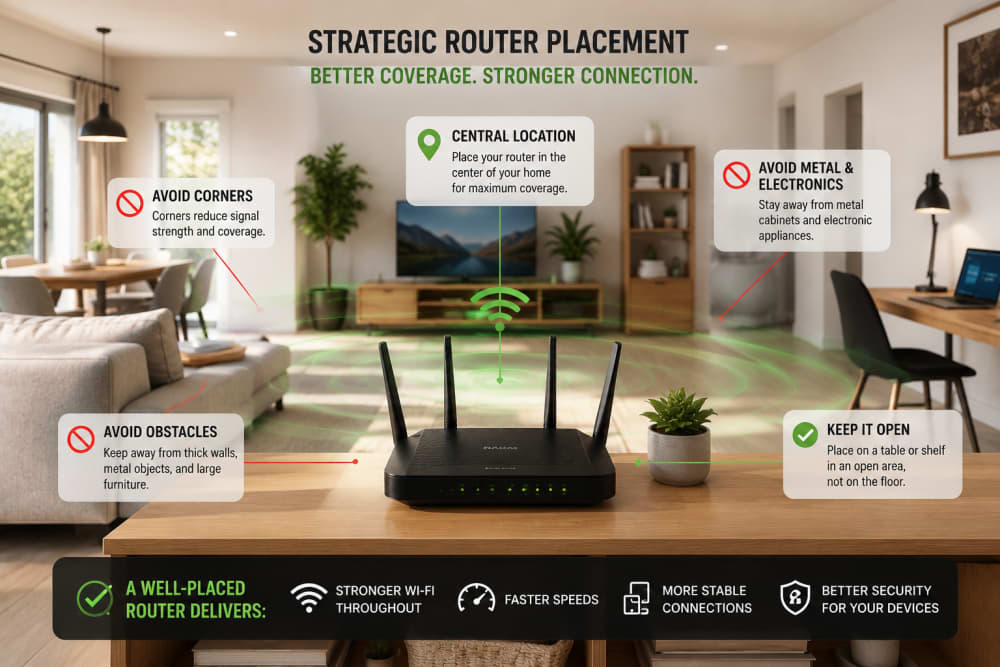
Optimizing router placement for better coverage
- Place the router near the center of the home, not hidden in a corner.
- Keep it raised, such as on a shelf or table, not on the floor.
- Avoid putting it inside a cabinet or behind the TV.
- Keep it away from microwaves, large metal objects, and thick walls.
- Restart it occasionally and keep the firmware updated.
When Mesh Wi‑Fi Is Better Than a Stronger Single Router
A mesh Wi‑Fi system uses two or more units to spread coverage across your home. One unit connects to your internet source, while the other units help carry the signal to rooms that normally suffer from weak Wi‑Fi.
Mesh is useful when your main problem is coverage, not internet speed. If the sitting room is fine but the bedroom, kitchen, or upstairs room is weak, mesh can make the whole house feel more consistent.
However, not every home needs mesh. For a small house, a mesh system can be unnecessary spending. For a large or complicated house, it can be the difference between daily frustration and peace.
| Situation | Better Choice | Why |
|---|---|---|
| Small apartment, few walls | Single Wi‑Fi 6 router | Cheaper and usually enough. |
| Large home with dead zones | Mesh Wi‑Fi kit | Spreads signal more evenly. |
| Gaming PC near the router | Router with Gigabit or 2.5G Ethernet | A wired connection gives lower latency. |
| Many smart home devices | Wi‑Fi 6 router or mesh | Handles many connected devices better. |
Check the Ports, Bands, and Features People Forget
Router shopping is not only about Wi‑Fi. The ports at the back matter too. If your internet package is above 1 Gbps, a router with only a Gigabit WAN may limit you. If you want to connect a desktop, TV, or gaming console by cable, check how many LAN ports are available.
Most normal homes should look for at least Gigabit Ethernet ports. Advanced users may consider 2.5G WAN or LAN ports, especially with fast fiber, NAS storage, or high-performance home labs.
Dual-Band vs Tri-Band
A dual-band router usually has 2.4 GHz and 5 GHz. The 2.4 GHz band reaches farther but is slower and more crowded. The 5 GHz band is faster but has a shorter range.
Tri-band routers may add another 5 GHz band or a 6 GHz band, depending on the model. This can help busy homes, mesh systems, and users with newer devices, but it is only useful when matched with real needs.
Useful Features to Look For
- WPA3 security: stronger modern Wi‑Fi protection where supported.
- Guest network: keeps visitors away from your main devices.
- Parental controls: useful for families managing screen time.
- Quality of Service helps prioritize gaming, video calls, or work traffic.
- Automatic firmware updates: keep security patches easier to manage.
- App management: convenient setup, but still use strong passwords.
Security: The Router Is Your Home’s Front Door
A router is not just a signal box. It is the front gate of your home network. If it is weak, outdated, or badly configured, your phones, laptops, cameras, smart TVs, and other connected devices can be exposed to unnecessary risk.
Security agencies such as CISA and consumer protection bodies advise home users to change default router usernames and passwords, update firmware, use strong Wi‑Fi encryption, and remove unnecessary services. These steps are simple, but many people ignore them after setup.
At minimum, your router should support WPA2-Personal. Better still, choose WPA3 support if your devices are modern. Avoid using old WEP security, and do not leave the router admin password as “admin” or the default printed password.
Home Router Security Checklist
- Change the default admin username and password.
- Use WPA2 or WPA3 encryption.
- Create a guest network for visitors.
- Disable WPS if you do not need it.
- Update firmware regularly or enable automatic updates.
- Replace routers that no longer receive security updates.
- Do not expose router management to the public internet unless you truly understand the risk.
So, Which Router Should You Actually Buy?
Let us make this practical. The right router depends on the home, not hype.
1. For a Small Home or Student Room
Choose a reliable dual-band Wi‑Fi 5 or Wi‑Fi 6 router. If the budget allows, go Wi‑Fi 6 because it gives better future value and handles multiple devices more efficiently.
You do not need a huge mesh system for one room unless the building has serious interference.
2. For a Family Home With Many Phones and Smart TVs
Choose a Wi‑Fi 6 router with good coverage, Gigabit ports, guest network, WPA3 support, and parental controls. If bedrooms have a weak signal, consider a two-pack mesh Wi‑Fi system.
This is the sweet spot for many homes: stable enough for streaming, video calls, schoolwork, and normal browsing.
3. For Gamers and Remote Workers
Choose a router with strong 5 GHz performance, Quality of Service, Gigabit or 2.5G ports, and low-latency features. For serious gaming, use an Ethernet cable where possible. Wired connection still beats Wi‑Fi for consistency.
If you work from home and attend many video calls, stability matters more than peak speed. A router that keeps calls smooth is better than one that wins only on marketing numbers.
4. For Large Homes or Thick Walls
Choose mesh Wi‑Fi. A single powerful router may still struggle if the signal has to pass through several concrete walls. Mesh spreads the network in a more practical way.
For best results, place mesh nodes where they still receive a strong signal from the main unit, not at the exact dead zone where the signal is already poor.
5. For Future-Proof Premium Homes
Choose Wi‑Fi 6E or Wi‑Fi 7 if you have high-speed fiber, modern devices, and the budget for it. Wi‑Fi 7 is impressive, especially with features like wider channels and Multi-Link Operation, but it is not magic if your devices are older.
Buy premium only when your home can actually benefit from premium.
Common Router Buying Mistakes to Avoid
- Buying only because of big Mbps numbers. The printed number is theoretical and combined across bands.
- Ignoring your devices. A Wi‑Fi 7 router is less useful if all your devices only support Wi‑Fi 5.
- Forgetting house layout. Walls and distance can defeat a router that looks powerful on paper.
- Using old ISP equipment forever. Some ISP routers are okay, but others have weak Wi‑Fi or limited features.
- Leaving default settings unchanged. Security starts with changing the default admin credentials.
- Putting the router in a hidden place. A router needs breathing space and a sensible location.
- Buying repeaters blindly. Cheap repeaters can reduce speed and create unstable roaming. Mesh is often cleaner.
Final Router Buying Checklist
Before you pay, answer these questions:
Is your plan below 100 Mbps, 100–500 Mbps, or above 1 Gbps?
Is it a small room, apartment, maisonette, or multi-floor home?
How many phones, laptops, TVs, cameras, and smart devices connect daily?
Do your devices support Wi‑Fi 6, 6E, or 7?
Do you have dead zones that may need mesh Wi‑Fi?
Does it support WPA3, firmware updates, and guest networks?
Do you need Gigabit or 2.5G Ethernet ports?
Are you paying for real benefits or just marketing hype?
My Straight Recommendation
If you want the safest choice today, buy a reputable Wi‑Fi 6 router for a small or medium home, or a Wi‑Fi 6 mesh system for a larger home with weak rooms. Move to Wi‑Fi 6E or Wi‑Fi 7 when you have newer devices, faster internet, and a real need for premium performance.
About the author
Caleb Muga is the founder of SurgeTechKnow, an ICT professional and software developer with BBIT, CCNA training, cybersecurity awareness and OPSWAT file-security training. Articles are written to simplify practical technology, cybersecurity, networking and ICT support topics for real users.
Read the full SurgeTechKnow profile →Related Networking Articles

How Computers Communicate on the Internet: A Complete Beginner’s Guide to Packets, IP Addresses, Routers, DNS, TCP and the Journey of Your Data

Networking Tools Every ICT Student Should Know: A Practical Beginner’s Guide