Complete Home Networking Guide: Routers, Wi-Fi, VLANs, IP Addresses, and Internet Security

The vast majority of people are using the internet every day without an understanding of how the internet gets to their device.
You wire up a phone, play a video, attend a Zoom meeting, or chat on social media, and it just works.
But there's a little network going on behind the scenes in your home. Your router is what gives you your addresses; it routes traffic, secures your devices, and links your home to the internet.
Networking isn't only for the IT guy. Whether you're working remotely, managing smart devices, playing online games, or just having a faster and safer internet connection, it's clear that understanding your network can save you time, money, and frustration.
This guide covers home networking basics in an easy-to-understand manner and gently brings up some concepts used by network engineers all over the world.
What Is a Home Network?
A home network is a group of devices that are joined up and used for communication and Internet access within a house.
Common devices include:
-
Smartphones
-
Laptops
-
Desktop computers
-
Smart TVs
-
Gaming consoles
-
Printers
-
Security cameras
-
Smart home devices, etc.
These devices communicate via a device that is called a router.
Consider your home WiFi network as a mini-digital neighborhood.
Each device gets a number, obeys traffic laws, and uses roads to get to destinations.
This lesson examines how the Internet is connected to your house.
Before understanding routers and Wi-Fi, it's important to understand the internet path.
A normal connection is as follows:
Internet
    │
    ▼
Internet Service Provider (ISP) is a company that provides internet service.
    │
    ▼
Modem / Fiber Terminal
    │
    ▼
Router
    │
 ┌──┼──┐
 ▼  ▼  ▼
Phone Laptop Smart TV
Your ISP may be:
-
Safaricom Home Fibre
-
Zuku
-
Faiba
-
Airtel
-
Starlink
The ISP provides internet access to your house, and the router shares access to the other devices.
What is a Router Used For?
The router is frequently regarded as the brain of the home network.
It does its main work, routing traffic between your devices and the web.
A router:
-
Installs connections to the Internet
-
Assigns IP addresses
-
Manages Wi-Fi
-
Provides security
-
Controls traffic flow
Most homes would have only one device with internet access without a router.
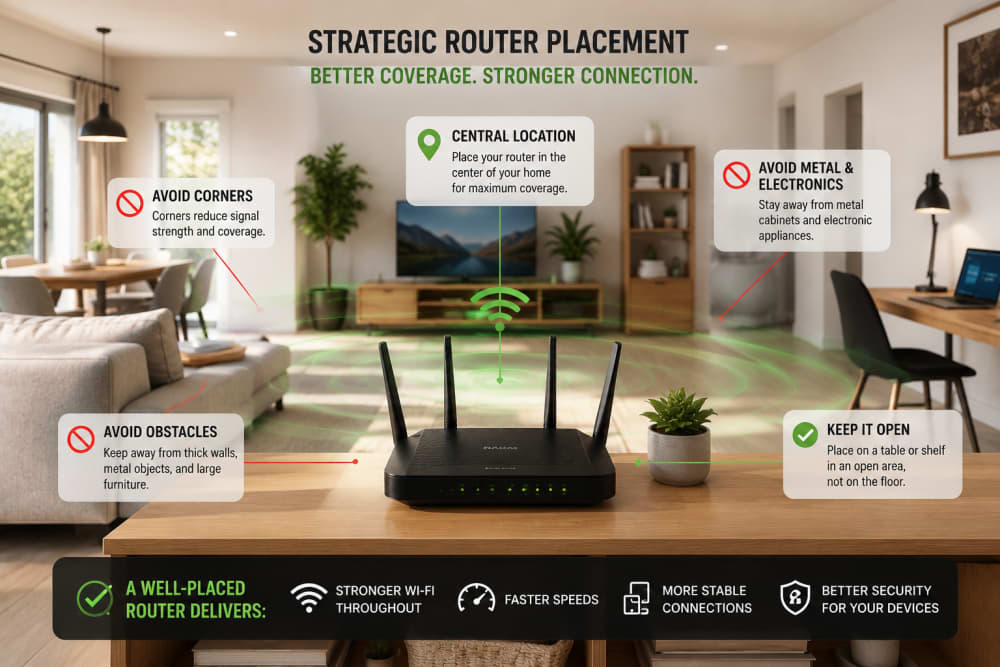
Optimizing router placement for better coverage
Some of the most popular router brands are:
-
TP-Link
-
Huawei
-
D-Link
-
Mikrotik
-
Tenda
-
Netgear
Understanding Wi-Fi
Wireless connectivity (Wi-Fi) allows devices to communicate without wires.
Instead of Ethernet cables, devices communicate via radio signals with the router.
Most contemporary routers offer:
2.4 GHz Wi-Fi
Advantages:
-
Longer range
-
Better wall penetration
Disadvantages:
-
Slower speeds
-
More interference
5 GHz Wi-Fi
Advantages:
-
Faster speeds
-
Less congestion
Disadvantages:
-
Shorter range
The vast majority of contemporary routers will automatically change the frequency between the two.
Why is an IP Address Important?
All devices in a network need to have an address.
The address is known as an IP address.
It's like a house number.
Data wouldn't know where to go without addresses.
Examples:
192.168.1.10
192.168.1.20
192.168.1.30
These addresses are automatically allocated by your router via DHCP.
Public IP Address vs Private IP Address
These two are often confused by novice writers.
Public IP Address
This is the address that is accessible on the internet.
It is assigned by your ISP.
Example:
41.89.x.x
Private IP Address
Improved within your private network.
Examples:
192.168.0.1
192.168.1.1
10.0.0.1
172.16.0.1
You can't access these addresses on the Internet.
What Is DHCP?
DHCP is an acronym for Dynamic Host Configuration Protocol.
It is used for the purpose of automatically assigning IP addresses.
If there is no DHCP, you'd have to configure all devices.
Suppose you set the network settings as follows:
-
Phones
-
TVs
-
Laptops
-
Cameras
-
Tablets
Each time they participated in the network.
DHCP takes care of that.
What Is DNS?
Humans remember names.
Computers understand numbers.
DNS is similar to the phonebook of the internet.
When you type:
google.com
DNS translates it to an IP address, which enables your device to find Google's servers.
Without DNS, you would need to memorize IP addresses for every website.
Ethernet vs Wi-Fi
Both kinds offer network connectivity.
These are, however, different purposes.
Ethernet
Advantages:
-
Faster
-
More stable
-
Lower latency
-
Better for gaming
Wi-Fi
Advantages:
-
Convenience
-
Mobility
-
Easy installation
In a stationary environment, Ethernet can sometimes offer the best performance.
Understanding VLANs
With the growth of networks, organization is important.
VLANs come into play here.
The full form of VLAN is Virtual Local Area Network.
VLANs enable the logical separation of devices while maintaining a logical connection.
Example:
| VLAN 10 | Finance |
| VLAN 20 | HR |
| VLAN 30 | IT |
| VLAN 40 | Guests |
VLANs can even be used to separate traffic when multiple devices are connected to the same switch.
VLANs are heavily utilized in large organizations for security and performance.
Why VLANs Matter
Without VLANs:
-
All users are visible to all.
-
Broadcast traffic increases.
-
Security becomes weaker.
With VLANs:
-
Better security
-
Easier management
-
Improved performance
VLANS can be used in any home network, no matter how large.
For example:
-
Main devices
-
Guest devices
-
Smart home devices
-
CCTV cameras
Can all be separated.
Network Security Basics
But many spend a lot of money on an internet connection and forget about security.
This may be hazardous.
Use the following commands to change the default password for the router.
When a router is installed, the first thing to do is to change:
-
admin
-
admin123
-
password

Router interface showing default credentials
The details of the default credentials are familiar to the attackers.
It is important to keep them in place, as they will cause needless risks if left untouched.
Enable WPA2 or WPA3
Modern Wi-Fi security standards include:
-
WPA2
-
WPA3
Do NOT use older standards like:
-
WEP
-
WPA
These are no longer regarded as secure.
Keep Firmware Updated
Firmware is software used in routers.
Cisco regularly publishes updates that:
-
Fix bugs
-
Improve stability
-
Patch vulnerabilities
A lot of users don't update their routers.
Attackers know this.
Set up a Guest Network
You don't have to share your main network with visitors.
A guest network:
-
Improves security
-
Isolates visitor devices
-
Protects personal systems
This is a feature that the majority of modern routers offer.
Common Issues That Occur With Home Networks
Slow Internet
Possible causes:
-
An excess of devices that are connected.
-
Weak Wi-Fi signal
-
ISP issues
-
Outdated router
Wi-Fi Dead Zones
Regions of poor reception.
Solutions:
-
Move the router
-
Use mesh Wi-Fi
-
Install access points
Frequent Disconnections
Possible causes:
-
Interference
-
Faulty cables
-
Outdated firmware
-
Hardware failure
Create a High-Performance Home Network
If you are beginning from scratch, concentrate on:
Good Router Placement
Avoid:
-
Corners
-
Metal cabinets
-
Thick concrete barriers
Ideally, position the router in the middle of the work area.
Secure Wi-Fi
Use:
-
Strong passwords
-
WPA3 where available
-
Guest networks
Regular Updates
Keep:
-
Router firmware
-
Device software
-
Security applications
updated.
Backup Internet Options
A secondary data connection can be essential for telecommuters.
Examples include:
-
Mobile hotspot
-
Secondary ISP
-
Starlink backup
The Future of Home Networking
Home networks are getting ever more sophisticated.
Emerging technologies include:
-
Wi-Fi 6
-
Wi-Fi 7
-
Mesh networking
-
Smart home automation
-
AI-assisted network management
Reliable networking knowledge is more and more important as more devices are being connected to the internet.
Final Thoughts
Although a home network might sound like a daunting task, the essential components of a network are rather simple. Routers act as direct traffic senders; WiFi enables devices to communicate; DHCP is used to assign addresses; DNS resolves the name of the website, and security keeps your network safe from threats.
Knowing these basics can help you diagnose issues, optimize your system, and create a safer digital world for your family or office.
These are the basics of networking, which are the foundation for all other networking aspects, be it for the beginner, a student preparing for networking certifications, or merely a person who wants more effective web connectivity in their home.
You may also want to read: Cybersecurity for Beginners: A Complete Guide to Staying Safe Online in the modern internet
About the author
Caleb Muga is the founder of SurgeTechKnow, an ICT professional and software developer with BBIT, CCNA training, cybersecurity awareness and OPSWAT file-security training. Articles are written to simplify practical technology, cybersecurity, networking and ICT support topics for real users.
Read the full SurgeTechKnow profile →Related Networking Articles
How Computers Communicate on the Internet: A Complete Beginner’s Guide to Packets, IP Addresses, Routers, DNS, TCP and the Journey of Your Data

Networking Tools Every ICT Student Should Know: A Practical Beginner’s Guide