Laptop Buying Made Easy: How to Choose Your Perfect Match
Buying a laptop should feel exciting, not like sitting for an exam in processor names, RAM numbers, graphics cards, and confusing shop labels. This guide breaks everything down in plain human language so you can spend your money with confidence.
Target audience: beginners, students, parents, office workers, small business owners, ICT learners, creators, and anyone tired of guessing when buying a laptop.
Quick Navigation
Select a section to move directly to the buying advice you need.
- ➜ The Laptop Shop Moment
- ➜ Start With Your Real Life
- ➜ Processor
- ➜ RAM
- ➜ SSD and Storage
- ➜ Display Quality
- ➜ Battery and Portability
- ➜ Windows, macOS, or Chromebook
- ➜ Dedicated Graphics
- ➜ AI PCs and NPUs
- ➜ Build Quality and Ports
- ➜ Budget Priorities
- ➜ Final Buying Checklist
- ➜ Frequently Asked Questions
- ➜ References and Further Reading
The Laptop Shop Moment We All Know
You walk into a laptop shop with a simple goal: “I just need a good laptop.” Then the seller starts throwing words at you: Core i5, Ryzen 7, SSD, dedicated graphics, touchscreen, Gen 13, OLED, 8GB, 16GB, refurbished, slim, business class, gaming, student laptop.
Suddenly, the “simple” purchase becomes a small headache. You do not want to be cheated, but you also do not want to overpay for features you will never use.
I have seen this situation many times, especially when helping friends, students, and office users choose laptops. One lesson has stayed with me: the best laptop is not always the most expensive one. The best laptop is the one that fits your work, your budget, your software, your movement, and your future needs.
That is the spirit of this guide. We are not going to worship big specs blindly. We are going to match the laptop to the person.
Start with Your Real Life, Not the Spec Sheet
Before checking the processor or RAM, ask yourself one honest question: “What will I actually do with this laptop most days?”
A student writing assignments, attending online classes, and browsing the web does not need the same laptop as a video editor. A business owner using Excel, email, invoices, and Zoom does not need the same machine as a gamer or cybersecurity student running virtual labs.
Match your laptop to your user type.
Match the Laptop to the User
- Student or office user: modern mid-range CPU, 16GB RAM, 512GB SSD, Full HD display.
- ICT learner: enough RAM for virtual machines, upgradeable storage, Ethernet or good Wi-Fi, and compatible software.
- Creator: colour-accurate screen, strong CPU, dedicated GPU where needed, and at least 1TB of storage for large projects.
- Gamer: dedicated GPU, high-refresh display, strong cooling, and adequate power limits.
- Frequent traveller: low weight, strong battery, durable build, USB-C charging, and a good webcam.
Processor: The Brain of the Laptop
The processor, also called the CPU, controls how fast your laptop handles tasks. It affects opening programs, multitasking, running browser tabs, editing files, coding, and overall responsiveness.
But here is where many buyers get confused: a “Core i7” is not automatically better than every “Core i5,” and a “Ryzen 7” is not automatically perfect for everyone. The generation, power design, cooling, and laptop model matter too.
What to choose in simple terms
- Basic use: Intel Core i3, Core 3, Ryzen 3, or Chromebook Plus-level hardware can work for browsing, documents, and online learning.
- Comfortable everyday use: Intel Core i5/Core Ultra 5 or AMD Ryzen 5/Ryzen AI 5 is a good middle ground.
- Heavy multitasking and creative work: Intel Core i7/Core Ultra 7, Ryzen 7/Ryzen AI 7, or Apple M-series chips are better choices.
- Gaming, engineering, editing, and advanced workloads: Go for higher-performance CPUs and check cooling reviews, not just the sticker.
For Windows 11, Microsoft lists minimum requirements such as a compatible 64-bit processor, at least 4GB RAM, 64GB storage, UEFI Secure Boot, TPM 2.0, and DirectX 12-compatible graphics. Those are minimums, not comfort specs. A laptop can meet the minimum and still feel slow in real life.
That is why I normally advise buyers to avoid choosing the absolute lowest spec unless the budget is very tight. A laptop is something you may use for three, four, or even five years. A small upgrade today can save a lot of frustration later.
RAM: Why 16GB Is Now the Sweet Spot
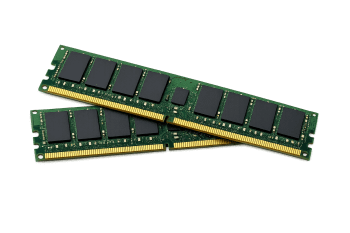
RAM is the laptop’s short-term working memory. When you open Chrome tabs, Word, Excel, Zoom, WhatsApp Web, Photoshop, VS Code, or school portals, RAM helps the laptop keep everything active without freezing.
In the past, 4 GB or 8 GB felt acceptable for many people. Today, websites are heavier, browsers use more memory, and multitasking is normal. That is why 16GB has become the safer choice for a smooth laptop experience.
Also check whether the RAM is upgradeable. Some slim laptops have soldered RAM, meaning you cannot add more later. If you are buying such a laptop, choose the RAM size carefully from the start.
Storage: Why SSD Matters More Than People Think
Storage is where your files, apps, photos, videos, and operating system live. The biggest thing to know is simple: choose an SSD, not an old-style HDD, for your main laptop storage.
An SSD makes a laptop boot faster, open programs faster, and feel more responsive. Even an average processor can feel better with an SSD, while a laptop with a slow hard drive can make good specs feel disappointing.
How much storage do you need?
- 128GB: Too tight for most Windows users unless almost everything is online.
- 256GB: Minimum practical size for students and light users.
- 512GB: Best starting point for most buyers.
- 1TB: Better for creators, gamers, programmers, photographers, and people who store many videos.
For a Kenyan buyer, I would also consider repairability and local parts availability. A laptop with a standard M.2 SSD slot is easier to upgrade than one with storage permanently soldered to the motherboard.
Display Quality: Your Eyes Will Thank You
Many people focus on the processor and RAM, but forget the screen. Yet the screen is what you stare at every day. A poor display can make reading, editing, learning, and long office sessions uncomfortable.
At minimum, look for Full HD resolution, which is 1920 × 1080. Avoid low-resolution screens if you can, especially on 14-inch and 15.6-inch laptops.
What to check before paying
- Resolution: Full HD should be your baseline.
- Panel quality: IPS or OLED usually gives better viewing angles than cheap TN panels.
- Brightness: If you work near windows or outdoors, brighter is better.
- Color accuracy: Important for designers, photographers, and video editors.
- Refresh rate: 60Hz is fine for office work; 120Hz, 144Hz, or higher is better for gaming and smoother motion.
A touchscreen is nice, but it should not be your priority unless you draw, annotate, teach, or frequently use tablet mode.
Battery Life and Portability: Do You Move Around?
A powerful laptop that dies after two hours can become annoying if you attend classes, travel, work in meetings, or live in an area where power interruptions happen.
Battery life depends on the processor, screen, battery size, software, brightness, and what you are doing. A laptop may advertise 12 hours, but heavy browsing, video calls, editing, or gaming can reduce that sharply.
For portability, also check the weight. A 13-inch or 14-inch laptop is easier to carry daily. A 15.6-inch laptop gives more screen space but can feel heavy in a backpack. Gaming laptops are usually heavier because they need stronger cooling and dedicated graphics.
Do not judge a battery by the seller’s words alone.
Search for real reviews, ask about battery health if buying used, and test whether the charger and battery behave normally before paying.
You May Also Like to Read About
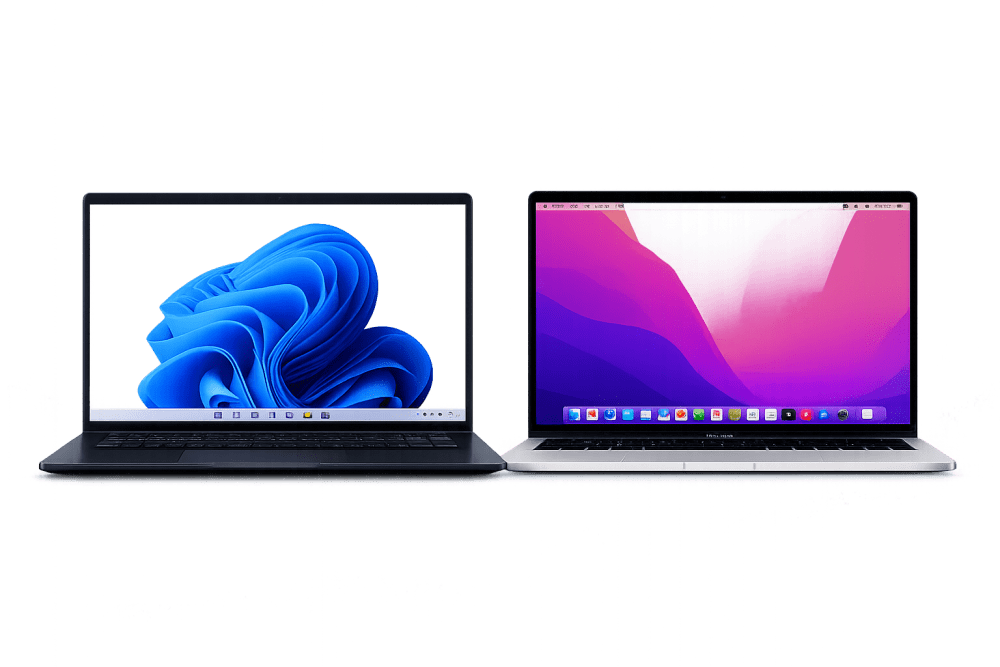
Windows, macOS, or Chromebook?
Your operating system affects software compatibility, price, workflow, security habits, and how easy the laptop feels to use.
Windows laptops
Windows is the safest choice for broad compatibility. It works well for Microsoft Office, accounting tools, school systems, business software, coding, networking tools, many games, and many accessories.
If you are an ICT student, office worker, gamer, or someone who depends on specific Windows software, Windows is often the practical choice.
MacBooks
MacBooks are known for strong build quality, long battery life, smooth performance, and a polished ecosystem if you already use an iPhone or iPad. Apple’s M-series chips also include a Neural Engine and strong media capabilities, which can help with creative workflows.
The downside is price, fewer upgrade options, and some software compatibility limits. Before buying a MacBook, confirm that your required school, office, or technical software runs on macOS.
Chromebooks
Chromebooks are simple, secure, and often affordable. They are good for users who mostly work online through Google Docs, Gmail, browser apps, school portals, and light media use.
Chromebook Plus models have clearer baseline specifications, including 8GB or more RAM and 128GB or more storage. That makes them better than the very weak Chromebooks many people used to complain about.
Graphics: When You Need a Dedicated GPU
The GPU handles graphics work. For everyday use, integrated graphics are enough. You can browse, watch videos, write documents, code, and do normal office tasks without a dedicated graphics card.
You should consider a dedicated GPU if you play serious games, edit videos often, work with 3D software, use heavy design tools, or run AI and creative workloads that benefit from graphics acceleration.
When dedicated graphics are worth it
- Gaming beyond casual titles
- Video editing in Premiere Pro, DaVinci Resolve, or similar tools
- 3D modelling, animation, rendering, and CAD
- AI experiments, local model work, or GPU-accelerated creative apps
- High-resolution external monitors and heavy visual workflows
NVIDIA’s RTX laptop GPUs are marketed for gaming, creating, productivity, development, and AI acceleration. That does not mean every buyer needs one. It means power users should check GPU specs carefully instead of buying a thin laptop that looks nice but cannot handle their workload.
AI PCs and NPUs: Useful or Just Marketing?
New laptops increasingly mention AI PCs, NPUs, Copilot+ features, Neural Engines, and AI acceleration. This can sound confusing, but the idea is simple.
An NPU, or Neural Processing Unit, is a dedicated chip designed to handle certain AI tasks efficiently. Intel Core Ultra processors include AI capabilities for tasks like video call enhancement, lighting improvement, noise reduction, and local AI workloads. AMD Ryzen AI processors also include dedicated AI engines built for efficient AI processing.
Apple’s M-series chips include a Neural Engine as well. For example, Apple’s M4 MacBook Air technical specifications list a 16-core Neural Engine.
Should you buy an AI PC only because of AI? Not necessarily. For most buyers, RAM, SSD, processor generation, battery life, display, keyboard, and warranty still matter more. But if you plan to keep the laptop for several years, an AI-capable processor can be a good future-ready feature.
Build Quality, Keyboard, Webcam, and Ports
Specs are important, but comfort matters too. A laptop can have a strong processor and still feel bad if the keyboard is weak, the touchpad is poor, the webcam is blurry, or the ports are missing.
Keyboard and touchpad
If you type a lot, test the keyboard. Keys should feel stable, not loose. The touchpad should respond smoothly and not jump around.
Webcam and microphone
For online classes, meetings, interviews, and remote work, a decent webcam and microphone matter. A 1080p webcam is better than an old 720p one, especially if you attend many video calls.
Ports
Check for USB-A, USB-C, HDMI, headphone jack, SD card reader, Ethernet, and charging ports depending on your work. Slim laptops may require dongles, which add cost and inconvenience.
Warranty and service
This is where many people make expensive mistakes. A laptop is not only a gadget; it is an investment. Ask about warranty, receipt, service center, spare parts, battery replacement, charger availability, and return policy.
If buying used or refurbished, check the screen, keyboard, battery health, charger, hinges, ports, BIOS lock, storage health, webcam, Wi-Fi, and whether the laptop is stolen or locked to an organization.
Used or Refurbished Laptop Warning Signs
- BIOS or firmware password you cannot remove.
- Battery health far below expected capacity.
- Loose hinges, flickering display, dead pixels, or swollen battery.
- Unknown organisation management or activation lock.
- Damaged USB-C charging port or non-original charger.
- SSD health errors, overheating, noisy fans, or unexpected shutdowns.
Budget Guide: Where Your Money Should Go
When the budget is limited, do not chase every feature. Spend money where it gives the biggest everyday benefit.
Priority: SSD and enough RAM
A laptop with an SSD and 16GB RAM often feels better than a laptop with a flashy processor but weak memory and slow storage. For most people, this is the biggest comfort upgrade.
Second priority: modern processor
Choose a processor that matches your work. Avoid very old generations unless the price is low and the condition is excellent.
Third priority: screen and battery
If you read, study, write, or work long hours, a good display and battery are not luxury features. They affect your daily comfort.
Fourth priority: extras
Touchscreen, fingerprint reader, RGB keyboard, metal body, and ultra-thin design are nice extras. Buy them after the basics are already strong.
My practical buying philosophy is simple: choose a laptop that will still feel usable two or three years from now. A cheap laptop that frustrates you every day is not truly cheap.
Final Buying Checklist
Before you pay, use this checklist. It can save you from regret.
-
What will I use the laptop for most days?
-
Is the RAM at least 8GB, preferably 16GB, for Windows?
-
Does it have SSD storage, preferably 256GB minimum and 512GB recommended?
-
Is the processor modern enough for my workload?
-
Is the screen Full HD or better?
-
Is the battery life realistic for my movement?
-
Does it have the ports I need?
-
Can RAM or SSD be upgraded later?
-
Is the keyboard comfortable?
-
Is the webcam good enough for meetings or classes?
-
Does my required software run on this operating system?
-
Is there a warranty, a receipt, and after-sales support?
-
If used, have I checked battery health, ports, hinges, screen, charger, and BIOS lock?
My recommended “safe middle” laptop for most people
For students, office workers, business users, and general home use, I would aim for a modern Intel Core i5/Core Ultra 5, AMD Ryzen 5/Ryzen AI 5, or Apple M-series machine, with 16GB RAM, 512GB SSD, Full HD or better display, good battery life, and a reliable warranty.
That combination is not the cheapest, and it is not the most powerful. It is simply the zone where many buyers get the best balance of speed, comfort, value, and future readiness.
Frequently Asked Questions
Is Core i7 always better than Core i5?
No. Generation, cooling, power limits, and laptop design matter. A newer Core i5 can outperform an older Core i7 in many real tasks.
Should I buy a gaming laptop for normal work?
Only if you need the performance. Gaming laptops are powerful, but they are usually heavier, louder, more expensive, and less battery-friendly than normal productivity laptops.
Is 8GB RAM enough?
It can work for light tasks, but 16GB is safer if you use many browser tabs, office apps, video calls, coding tools, or plan to keep the laptop for years.
Should I buy new or refurbished?
New gives better peace of mind and warranty. Refurbished can offer better specs for less money, but only buy from a trusted seller and test the machine thoroughly.
What is the biggest laptop buying mistake?
Buying based only on price or processor name. A good laptop is a balance of CPU, RAM, SSD, display, battery, keyboard, warranty, and your actual needs.
References
These sources were used to verify key technical points and the current laptop-buying context:
- Microsoft — Windows 11 specifications and requirements
- Microsoft Support — Windows 11 system requirements
- Apple Support — MacBook Air 13-inch, M4, 2025 technical specifications
- Intel — Core Ultra processors
- AMD — Ryzen AI processors
- Google — Chromebook Plus specifications
- NVIDIA — GeForce RTX laptops
- ENERGY STAR — Computers and portability guidance
About the author
Caleb Muga is the founder of SurgeTechKnow, an ICT professional and software developer with BBIT, CCNA training, cybersecurity awareness and OPSWAT file-security training. Articles are written to simplify practical technology, cybersecurity, networking and ICT support topics for real users.
Read the full SurgeTechKnow profile →