Free Up Hidden Storage on Samsung Android Phones
Free up gigabytes of hidden storage on your Android. That sounds almost too good to be true, especially when your phone keeps warning you that storage is full even after you have deleted photos, cleared WhatsApp media, and uninstalled apps you barely use.
I have seen this happen many times, especially on Samsung phones used heavily for photos, WhatsApp, TikTok, downloads, screenshots, work files, and daily browsing. You clean the gallery, remove old videos, empty the recycle bin, restart the phone, and still the storage bar looks stubbornly full.
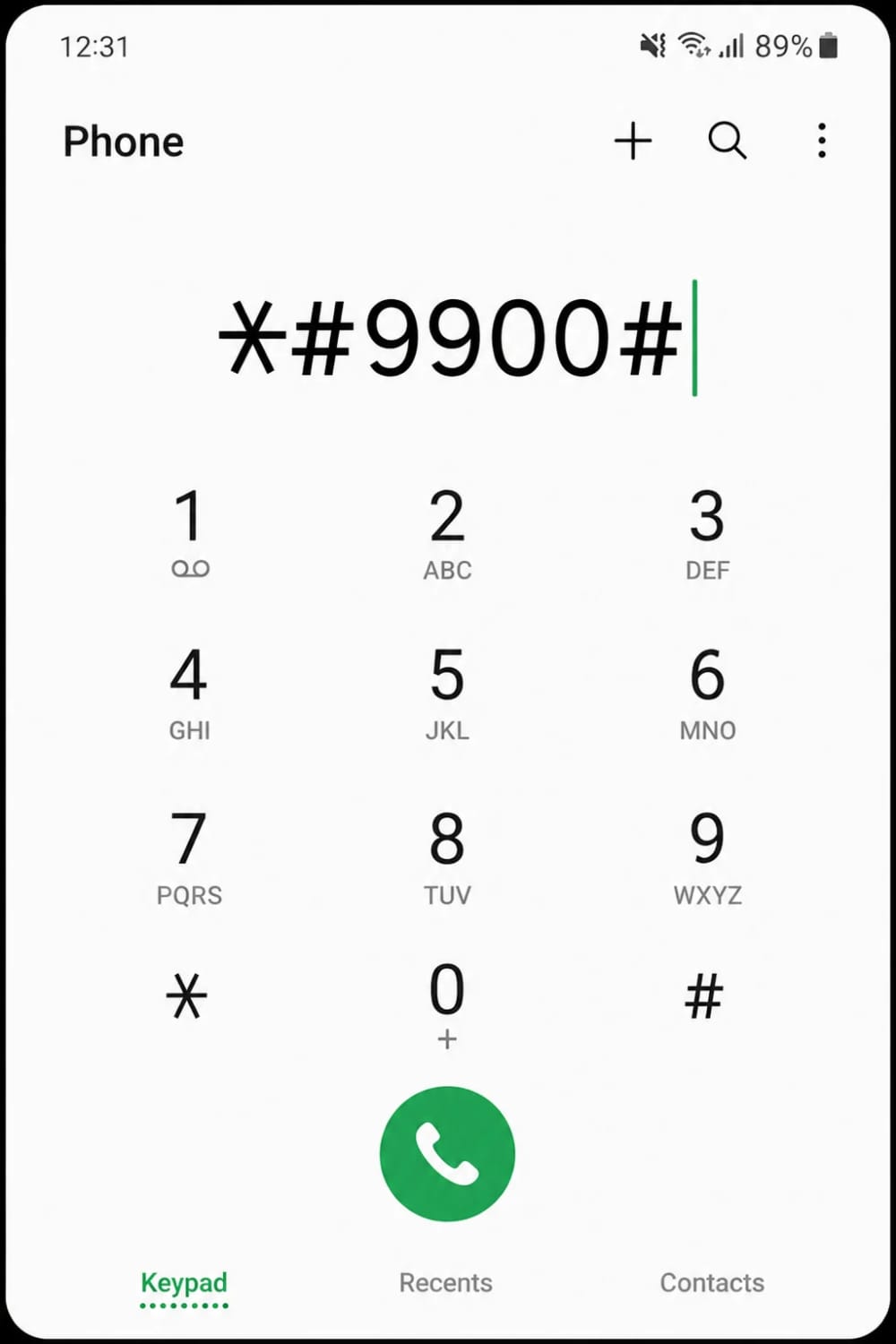
That is where many users discover a hidden Samsung diagnostic area called SysDump. It can be opened on many Samsung Galaxy phones using the code *#9900#, and one of its useful options is Delete dumpstate/logcat.
This guide explains what that “trash file dump” really means, when it helps, when it will not help, how to use it carefully, and what else you should clean if your Android phone is still struggling for space.
Quick Navigation
Why Your Phone Still Looks Full After Cleaning
Most people assume phone storage is only photos, videos, apps, music, and downloads. That is partly true, but Android also stores temporary files, app cache, update packages, thumbnails, crash reports, diagnostic logs, and system-generated records.
These files are not always bad. Many of them help apps open faster, help developers diagnose errors, or allow the system to track what happened when an app crashed.
The problem starts when diagnostic files pile up quietly. You may never open them, but they can still sit in internal storage, especially if the phone has gone through repeated app crashes, failed updates, overheating episodes, network problems, or system errors.
That is why someone can delete hundreds of photos and still feel like nothing changed. Sometimes the biggest storage problem is not what you can see in the gallery; it is what the system has been keeping behind the curtain.
What Is Samsung SysDump?
SysDump is a diagnostic tool found on many Samsung devices. It is mainly used by technicians, developers, enterprise support teams, and advanced users to collect system logs when troubleshooting device problems.
Samsung Knox documentation explains that entering *#9900# in the Phone app opens the SysDump tool on supported Samsung phones. On some Wi-Fi-only Samsung tablets, Samsung says users may need to open a factory-mode keypad through the Calculator app before entering the same code.
Inside SysDump, you may see options such as running dumpstate/logcat, copying logs to storage, changing debug level, and deleting dumpstate/logcat files. The option we are focusing on is the delete option, because it clears stored diagnostic logs that may be taking up space.
Simple Explanation
Think of SysDump like a technician’s notebook inside your Samsung phone. It records technical clues when the system misbehaves. Deleting dumpstate/logcat is like throwing away old troubleshooting notes you no longer need.
What Are Dumpstate And Logcat Files?
To understand this properly, let us keep it practical.
Logcat is a logging system used by Android to record messages from apps and the operating system. Developers use it to understand errors, crashes, warnings, and background activity.
Dumpstate is a broader system report. It can include device status, system service information, error details, and diagnostic data that support teams use when investigating technical issues.
In normal use, you do not need to read these files. They are not your photos, contacts, videos, or personal documents. They are technical records created for troubleshooting.
That is why deleting old dumpstate/logcat logs is usually safe for ordinary users, especially when you are not actively working with Samsung support, an app developer, or an IT department to diagnose a device problem.
How To Delete Dumpstate/Logcat Safely On Samsung
Before you begin, remember this important point: this code mainly applies to Samsung Galaxy devices. It may not work on Xiaomi, Tecno, Infinix, Oppo, Vivo, Motorola, Nokia, Pixel, or other Android brands.
Here is the careful method.
- Open the Phone app on your Samsung device.
- Dial *#9900#.
- Wait for the SysDump menu to appear.
- Look for Delete dumpstate/logcat.
- Tap it once and allow the phone to clear the stored logs.
- Exit the SysDump menu.
- Restart your phone.
- Check Settings > Battery and device care > Storage to see whether space has improved.

Some users recover only a small amount of space. Others recover hundreds of megabytes or even several gigabytes, depending on how many logs were stored and how the phone had been used.
Do not panic if you do not see a huge difference. This method is useful, but it is not a magic repair for every storage problem.
You May Also Like To Read About
- Why Android Phones Slow Down Over Time
- The secret Android gesture that lets you scroll with your eyes
- Stolen phone protection, smart lock, extended unlock, and find my device settings you should change today
- How to read unsent messages on Android
- Windows Security Settings Everyone Should Enable
Important Warnings Before You Tap Anything
This is where I want to be very honest. The *#9900# menu is not a normal settings page designed for casual browsing. It is a diagnostic menu, so you should not tap random options just because they look interesting.
For normal storage cleaning, stick to Delete dumpstate/logcat. Avoid changing debug levels unless Samsung support, your workplace IT team, or a trusted technician has specifically asked you to do so.
Samsung’s own enterprise documentation says that if the debug level was adjusted for troubleshooting, it should be returned to Low afterward. That matters because higher debug settings may generate more diagnostic data and can require a restart.
Do Not Do This Carelessly
- Do not change the debug level unless you know why.
- Do not run every option in the SysDump menu.
- Do not expect the code to work on every Android brand.
- Do not delete logs if you are currently collecting evidence for a phone fault.
- Do not install random “phone cleaner” apps that demand too many permissions.
Other Android Storage Areas You Should Clean Too
Deleting dumpstate/logcat is only one piece of the storage-cleaning puzzle. If your phone still feels heavy, check the areas below.
1. WhatsApp Media
WhatsApp can quietly become one of the biggest storage users on Android. Open WhatsApp, go to Settings > Storage and data > Manage storage, then review large files and frequently forwarded media.
2. Gallery Trash Or Recycle Bin
Many people delete videos from the gallery but forget that Samsung Gallery keeps deleted items in Trash for a period before permanently removing them. Open Gallery, check Trash, and empty it if you are sure you no longer need those files.
3. App Cache
Apps like browsers, social media apps, maps, shopping apps, and streaming platforms can store large caches. Go to Settings > Apps, open heavy apps, and clear the cache where appropriate.
4. Downloads Folder
The Downloads folder often contains old PDFs, APK files, duplicate images, receipts, and documents you opened once and forgot. Use the My Files app to review it carefully.
5. Offline Videos And Music
YouTube, Netflix, Spotify, and other apps may store offline content. The files may not appear clearly in the gallery, so check inside each app’s download section.
6. Duplicate Photos And Screenshots
Screenshots, memes, forwarded images, and duplicate camera shots build up quickly. Cleaning them manually may look boring, but it is one of the safest ways to reclaim meaningful space.
Common Mistakes People Make When Cleaning Android Storage
The biggest mistake is trusting aggressive cleaner apps that promise miracle performance. Some of them show dramatic animations, but they may only clear the temporary cache that comes back later.
Another mistake is deleting files without checking what they are. For example, deleting a folder blindly can remove school notes, work documents, app backups, or downloaded certificates.
A third mistake is confusing storage problems with performance problems. A phone can be slow because of low RAM, old battery health, too many background apps, outdated software, malware, weak network, overheating, or a nearly full storage drive.
My practical rule is simple: clean what you understand first. Start with gallery trash, WhatsApp media, downloads, app cache, and old videos. Then use Samsung SysDump only for its specific log-cleaning function if your device supports it.
Who Should Try This?
This method is most useful for Samsung users who keep receiving storage warnings even after deleting obvious files. It can also help people whose phones have created large diagnostic logs after repeated crashes or system issues.
It is also helpful for busy professionals, students, parents, small business owners, and anyone who depends on their phone daily but does not want to factory reset unless necessary.
However, if your storage problem is caused by videos, WhatsApp backups, huge apps, or offline downloads, deleting dumpstate/logcat will not solve everything. You still need to clean the visible storage hogs.
Final Thoughts: Clean Smart, Not Blindly
Cleaning out the “trash” file dump on Samsung is not internet magic. It is simply removing old diagnostic logs that may no longer be useful to you.
The hidden code *#9900# can open a powerful Samsung SysDump menu, and the Delete dumpstate/logcat option can safely clear residual log files in many cases. Used correctly, it may free up hidden storage and reduce the frustration of a phone that always looks full.
But the best approach is balanced. Do not tap every hidden setting. Do not rely on random cleaner apps. Do not assume every Android phone supports the same code.
Start with normal storage cleaning, use Samsung’s log-cleaning option carefully, then restart your phone and monitor the difference. That is how you clean your Android like someone who understands the device, not someone guessing in the dark.
About the author
Caleb Muga is the founder of SurgeTechKnow, an ICT professional and software developer with BBIT, CCNA training, cybersecurity awareness and OPSWAT file-security training. Articles are written to simplify practical technology, cybersecurity, networking and ICT support topics for real users.
Read the full SurgeTechKnow profile →

