The Secret Android Gesture That Lets You Scroll With Your Eyes
You are holding your phone while eating, washing your hands, carrying a bag, or trying not to touch the screen with dirty fingers.
Then a thought hits you: what if your Android phone could move through the screen without your fingers doing anything?
It sounds like something from a futuristic movie. But on many Android phones, there is already a hidden accessibility feature that lets you control parts of your phone using eye movements and facial gestures.
The feature is not exactly magic, and it is not always the same as the old Samsung Smart Scroll feature. But when you understand how Android Camera Switches work, the idea becomes very cool: your front camera can detect gestures like looking left, looking right, looking up, smiling, raising your eyebrows, or opening your mouth, then use those gestures to navigate your phone.
I first paid serious attention to this kind of feature while exploring Android accessibility tools. At first, I thought accessibility settings were only for people with specific disabilities. But the more I tested them, the more I realized something important: accessibility features often become power-user features too.
They are built to help people who may not be able to touch, swipe, or tap easily. Yet the same tools can teach all of us how flexible modern phones have become.
Quick Navigation
What Is This Secret Android Eye Gesture?
The feature most people are talking about is called Camera Switches, which is part of Android's Switch Access accessibility system.
Instead of using only your finger, a physical switch, or your voice, Camera Switches turns your phone's front-facing camera into a control method. The camera watches for selected face movements and uses them as commands.
Google says Camera Switches can help users navigate their phone with facial gestures. Supported gestures include looking left, looking right, looking up, smiling, raising eyebrows, and opening the mouth.
That means the phone is not literally reading your mind. It is detecting visible facial movements and converting them into navigation actions.
For example, you can assign one gesture to move through items on the screen and another gesture to select. With the right setup, this can feel like hands-free scrolling or hands-free navigation.
Smart Scroll vs Camera Switches: They Are Not the Same
This is where many Android users get confused.
Years ago, Samsung had a feature called Smart Scroll on some Galaxy phones. Samsung describes Smart Scroll as a feature that uses the front-facing camera to detect when you are looking at the device, then scrolls content such as webpages, lists, or messages based on the angle of the device.
That old feature created the famous idea of “scrolling with your eyes.” But depending on your phone model, region, Android version, and Samsung software version, Smart Scroll may not be available today.
Camera Switches is different. It is broader, more accessibility-focused, and designed for navigation rather than being only a scrolling trick.
So, when people say “Android lets you scroll with your eyes,” the most accurate explanation is this: some older Samsung phones had a Smart Scroll feature, while many modern Android devices can use Camera Switches to navigate through facial and eye-direction gestures.
How Android Camera Switches Work
Camera Switches relies on your phone's front camera. When enabled, your phone looks for specific facial gestures and uses them as switch inputs.
Think of it like replacing a tap with a face movement.
You can set different gestures for different actions. The exact options may vary slightly by phone, Android version, and accessibility suite version, but the general idea remains the same.
- Look right, can move to the next item.
- Look left, and move back.
- Raise eyebrows can select an item.
- A smile can open an action menu.
- An open mouth can pause or trigger another assigned action.
This is not only about showing off. For users with motor challenges, temporary injuries, tremors, paralysis, or limited hand movement, this can be a life-changing way to operate a phone.
For everyone else, it is a reminder that Android has powerful tools hidden under Accessibility that many people never open.
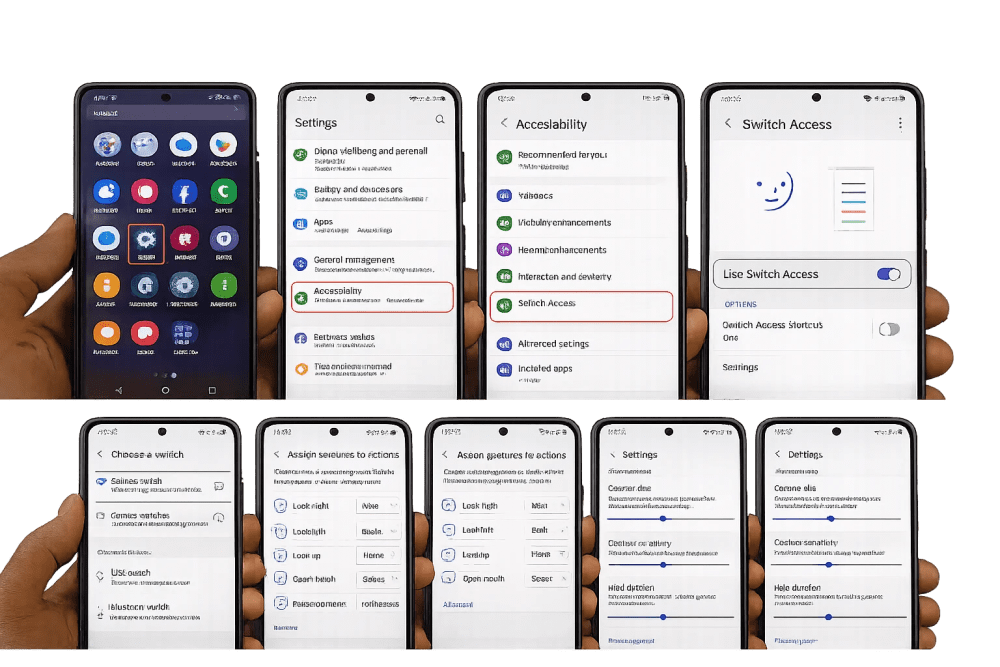
How To Turn On Camera Switches on Android
The names may look slightly different depending on your phone, but the general path is usually simple.
- Open Settings on your Android phone.
- Go to Accessibility.
- Find Switch Access.
- Turn on Switch Access.
- Choose Camera Switch or Camera Switches during setup.
- Assign facial gestures to actions such as Next, Select, Back, Home, or Pause.
- Adjust gesture sensitivity and hold duration until it feels natural.
Google recommends that the phone should be securely mounted, charged, and positioned with a clear view of your face. That advice matters because the front camera needs to see you clearly.
If the phone is lying flat on a table, moving around in your hand, or facing poor lighting, the feature may feel unreliable.
You May Also Like To Read About
Practical Ways To Use It Without Feeling Awkward
The first time you try face gestures, you may feel funny. That is normal.
But once you treat it as a tool instead of a party trick, the usefulness becomes clearer.
- Reading recipes: Your hands may be wet or covered in flour, but you still need to move through the page.
- Following study notes: You can move through text while your hands are on a notebook or keyboard.
- Temporary injury support: If your hand, wrist, or fingers are painful, facial gestures can reduce touch interaction.
- Accessibility support: For users with limited mobility, this can make independent phone use easier.
- Demonstrations and learning: ICT students, teachers, and tech creators can use it to explain how accessibility technology works.
The best use case is not necessarily fast social media scrolling. It is controlled navigation when touching the screen is difficult, uncomfortable, or impossible.
Privacy, Battery, and Limitations You Should Know
Because Camera Switches uses the front camera, it is fair to ask privacy questions.
The feature needs camera access to detect facial gestures. That does not mean every app is watching you. It means the accessibility service uses the camera as an input method while the feature is active.
Google also notes that Camera Switches cannot be used at the same time as other apps that are using the camera. So if you open a video call or camera app, the feature may pause or stop working until the camera is free again.
Battery is another thing to consider. Any feature that keeps the camera active can use more power than normal tapping. This is why it is better to use it intentionally instead of leaving it on all day when you do not need it.
Lighting also matters. In a dark room, the phone may struggle to detect your face accurately. If you wear sunglasses, a cap, or sit with strong backlight behind you, performance can drop.
Tips To Make Eye and Face Scrolling Work Better
If Camera Switches feels frustrating at first, do not give up after one minute. Most people need a few adjustments before it becomes comfortable.
- Mount the phone properly. A stable phone gives the camera a consistent view of your face.
- Use good lighting. Soft front-facing light works better than darkness or harsh backlight.
- Start with two gestures only. For example, use “look right” for Next and “raise eyebrows” for Select.
- Increase hold time if accidental triggers happen. This helps prevent the phone from reacting to tiny natural movements.
- Adjust sensitivity slowly. Too sensitive can feel jumpy; too low can feel unresponsive.
- Pause gesture detection when finished. This saves battery and avoids accidental commands.
My honest advice is to treat it like learning keyboard shortcuts. At first, it feels slower than touching the screen. But once your settings are tuned, it becomes a useful backup control method.
Final Verdict: Cool Trick, Serious Purpose
The secret Android gesture that lets you scroll with your eyes is not just a viral trick. It is part of a deeper accessibility story.
Samsung's Smart Scroll helped popularize the idea of eye-based scrolling years ago. Google's Camera Switches made the concept more practical for accessibility by allowing facial gestures and eye-direction gestures to control navigation.
For beginners, busy professionals, students, creators, and anyone curious about hidden Android tools, the takeaway is simple: open your Accessibility settings. There is a good chance your phone can do more than you think.
You may not use eye and face gestures every day. But the day your hands are occupied, your screen is messy, or someone needs a more accessible way to use a phone, this hidden feature suddenly becomes more than cool.
It becomes useful.
About the author
Caleb Muga is the founder of SurgeTechKnow, an ICT professional and software developer with BBIT, CCNA training, cybersecurity awareness and OPSWAT file-security training. Articles are written to simplify practical technology, cybersecurity, networking and ICT support topics for real users.
Read the full SurgeTechKnow profile →

