How Your Home Internet Actually Works (and How to Fix It)

The internet package is active, the router lights are on, and a speed test beside the router looks excellent—yet a television buffers, a laptop drops calls, and phones in the bedroom struggle to load pages.
This is where many people discover that paying for internet and building a good home network are not the same thing.
I have helped troubleshoot homes where the provider connection was healthy, but the router was hidden behind a television, an extender was placed where it received almost no signal, cameras competed with video calls, or every fixed device used Wi-Fi even though Ethernet was available.
A home network does not need to be complicated. Once you understand what the router, modem, switch, access point, IP address, DNS server, and Wi-Fi bands do, most common problems become easier to identify.
This guide is written for beginners, families, students, remote workers, and small-home users. It explains the technology in plain language while giving you enough practical depth to design, secure, and troubleshoot a reliable network.
Quick Navigation
Select a section to move directly to it.
- ➜ What a Home Network Is
- ➜ Router, Modem, Switch, and Access Point
- ➜ How Internet Traffic Moves
- ➜ IP Addresses and Subnets
- ➜ DHCP and DNS
- ➜ Wi-Fi Bands and Channels
- ➜ Router Placement
- ➜ Ethernet and Cabling
- ➜ Home Network Security
- ➜ Guest and IoT Networks
- ➜ File and Printer Sharing
- ➜ Speed, Latency and Packet Loss
- ➜ Troubleshooting Method
- ➜ Choosing Equipment
- ➜ Example Home Network
- ➜ Frequently Asked Questions
- ➜ References and Further Reading
The Beginner’s Home Network Map
Provider connection → modem or ONT → router → switch and access points → phones, computers, televisions, printers, cameras, and smart devices. One physical box may perform several of these functions.
What a Home Network Actually Is
A home network is the group of devices in your house that communicate through a router, switch, access point, or a combination of these devices. It may include phones, laptops, smart televisions, printers, CCTV cameras, game consoles, tablets, speakers, and Internet of Things devices.
The internet and your home network are related, but they are not the same thing. Your home network can still allow devices to communicate locally even when the internet connection is down. For example, a laptop may print to a network printer or copy files from another computer without reaching the public internet.
A useful way to picture the arrangement is:
Internet service provider → modem, fibre terminal, or wireless receiver → router → wired and wireless devices.
In many homes, one box performs several jobs. The device supplied by the internet provider may contain a modem or optical terminal, router, Ethernet switch, firewall, DHCP server, and Wi-Fi access point. Understanding the separate functions still matters because it helps you diagnose which part has failed.
Router, Modem, Switch, and Access Point Explained
A router connects different IP networks. In a typical home, it connects the private home network to the internet provider’s network. It also commonly performs network address translation, distributes IP settings, blocks unsolicited incoming traffic, and provides Wi-Fi.
A modem converts signals between the provider’s transmission medium and usable network data. Fibre installations commonly use an optical network terminal, often called an ONT. Fixed wireless providers may install an outdoor receiver. Some people call every provider box a modem, even when the technology is different.
A switch adds wired Ethernet ports and moves traffic between devices on the same local network. An unmanaged switch normally works without configuration. It is useful when the router has too few LAN ports for computers, televisions, access points, printers, cameras, or network storage.
A wireless access point connects Wi-Fi devices to the wired network. It is not automatically a router. Many home routers include an access point, while larger homes may use additional access points for better coverage.
A mesh Wi-Fi system uses several coordinated wireless nodes. Mesh can improve coverage and roaming, but the best results usually come when nodes use Ethernet backhaul instead of communicating with each other only over Wi-Fi.
Quick Device Comparison
- Router: connects different networks and directs traffic.
- Modem or ONT: connects the home to the provider’s transmission service.
- Switch: adds wired LAN connections.
- Access point: provides Wi-Fi access to the wired network.
- Mesh node: works with other coordinated nodes to extend wireless coverage.
How Internet Traffic Moves Through Your Home

How Internet Traffic Moves
When you open a website, your phone first sends traffic through Wi-Fi to the access point built into the router. The router forwards the request to the internet provider. The provider and other networks carry it to the destination server, and the reply follows a route back.
The router keeps track of active connections so the correct reply reaches the correct device. Network address translation allows multiple private devices to share one public IPv4 address in many common home setups.
Your experience depends on more than the speed package. Delay, packet loss, Wi-Fi interference, overloaded equipment, poor signal, busy servers, and congestion can make a connection feel slow even when a speed test reports high bandwidth.
This explains a problem I have encountered repeatedly: a user runs one speed test beside the router, sees a strong result, and assumes the network is healthy. Meanwhile, devices in another room experience weak signal, high latency, or retransmissions. Good networking means testing the path where the problem actually occurs.
IP Addresses, Subnets, Gateways, and NAT
Every device on an IP network needs an address. Home routers commonly assign private IPv4 addresses such as 192.168.0.25, 192.168.1.10, or 10.0.0.8. The exact range depends on the router.
The subnet tells a device which addresses are local. A common home network uses a /24 subnet, represented by 255.255.255.0. This normally provides 254 usable IPv4 addresses, which is more than enough for an ordinary household.
The default gateway is usually the router’s local IP address. A device sends traffic to the gateway when the destination is outside its local subnet.
Private IPv4 addresses are not normally routed directly across the public internet. The router commonly uses network address translation to represent internal devices through its public address.
IPv6 works differently and provides an enormous address space. Many providers and modern routers support it alongside IPv4. Beginners do not need to disable IPv6 simply because it is unfamiliar; disabling it can create unnecessary problems.
DHCP and DNS: Two Services You Use Constantly
Dynamic Host Configuration Protocol, or DHCP, automatically provides devices with network settings. These typically include an IP address, subnet mask, default gateway, DNS server, and lease duration.
Without DHCP, you would need to configure every phone, laptop, television, and smart device manually. The home router usually acts as the DHCP server.
Domain Name System, or DNS, translates names such as techknowsolution.co.ke into IP addresses and other records. If a device can reach an online service by IP address but not by name, DNS may be the problem.
A common beginner mistake is changing random DNS settings before checking the basics. First, confirm that the device has a valid IP address, can reach the router, and has working internet connectivity. Then test name resolution.
You may use the provider’s DNS servers, the router’s resolver, or a reputable public DNS service. DNS choice can affect reliability and privacy, but it cannot repair weak Wi-Fi, damaged cables, or a failed internet link.
Understanding Wi-Fi Bands, Channels, and Signal

Wi-Fi bands
Wi-Fi is convenient, but it is a shared radio system. Devices compete for airtime, and walls, floors, furniture, neighbouring networks, Bluetooth devices, and household electronics can affect performance.
The 2.4 GHz band usually reaches farther and passes through obstacles better, but it has fewer non-overlapping channels and is often crowded. It is useful for distant or low-bandwidth devices.
The 5 GHz band usually provides higher capacity and less interference but has a shorter range. It is often a better choice for laptops, televisions, phones, and game consoles near the router.
The 6 GHz band, available with compatible Wi-Fi 6E and Wi-Fi 7 equipment, offers additional clean spectrum but has a shorter practical range and requires compatible clients.
A higher Wi-Fi generation does not guarantee better results if placement is poor. A modest access point in an open central position may outperform an expensive router hidden inside a metal cabinet, behind a television, or at one end of the house.
Signal bars also do not tell the whole story. A device may show a strong signal while interference and congestion reduce actual performance.
Practical rule: Use 2.4 GHz for range and simple IoT devices, 5 GHz for most modern high-bandwidth devices, and Ethernet for fixed equipment that needs maximum stability.
Where to Place Your Router or Access Point
Place the main Wi-Fi equipment near the centre of the area you want to cover, elevated above floor level, and in the open. Avoid putting it inside a cupboard, behind thick concrete, beside large metal objects, or next to equipment that produces interference.
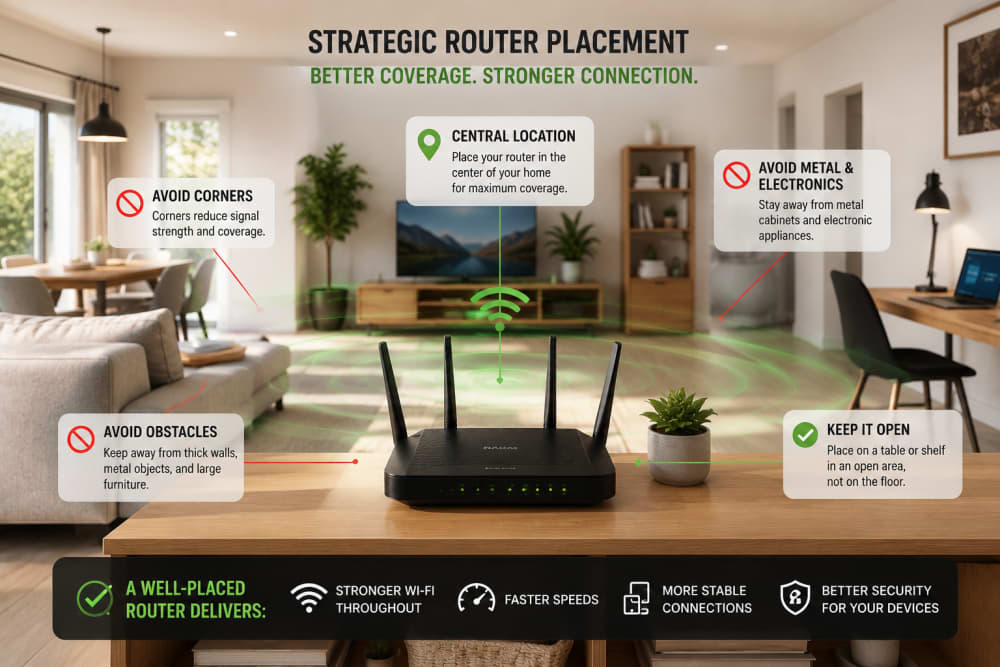
Optimizing router placement for better coverage
In Kenyan homes, reinforced concrete walls, multiple floors, iron-sheet structures, and long, narrow layouts can make one-router coverage difficult. Do not assume that buying the router with the most antennas will solve every building problem.
For a large home, add a wired access point or a properly designed mesh node. Ethernet backhaul gives an access point a stable connection to the router and avoids using wireless capacity for communication between nodes.
Avoid placing several access points extremely close together at maximum power. Their coverage can overlap too aggressively and create interference or prevent devices from roaming properly.
When Ethernet Is Better Than Wi-Fi
Ethernet is normally more stable, predictable, and resistant to interference than Wi-Fi. Use it where reliability matters or where a device does not move.
Good Ethernet candidates include desktop computers, smart televisions, game consoles, CCTV recorders, network storage, printers, and access points.
Cat 5e cable supports Gigabit Ethernet over normal home distances when installed correctly. Cat 6 provides additional performance margin and can support higher speeds over suitable distances. Buying heavily marketed cable categories offers little value when the router, switch, device, or internet connection supports only 1 Gbps.
Poor termination, damaged clips, tightly crushed cable, moisture, and low-quality copper-clad aluminium cable can cause unstable links. Use a proper solid-copper cable for permanent installation and test both ends.
Power over Ethernet can carry data and electrical power to compatible access points, cameras, and phones through one cable. The switch or injector and the powered device must support compatible PoE standards.
How to Secure a Home Network
Change the router’s administrator password. This password controls the router and should be different from the Wi-Fi password. Do not keep factory credentials.
Use WPA3-Personal when all important devices support it. WPA2-Personal with AES remains acceptable for compatible older devices. Avoid obsolete WEP and WPA security. The Federal Trade Commission recommends WPA3 or WPA2 encryption for home Wi-Fi.
Choose a strong Wi-Fi passphrase that is difficult to guess but practical for your household. Do not use a phone number, child’s name, house number, or predictable sequence.
Install router firmware updates. Some routers update automatically, while others require manual checks. Replace equipment that no longer receives security updates, especially when serious vulnerabilities remain unpatched.
Disable remote administration from the internet unless you genuinely need it and understand how it is protected. Also disable WPS PIN features when possible because convenience should not outweigh security.
Create a guest network for visitors. A good guest network prevents visitors from reaching private computers, storage, printers, or cameras while still providing internet access.
Where supported, isolate smart cameras, televisions, plugs, and other IoT devices from laptops and phones that store sensitive information. A guest or dedicated IoT network is better than placing every device in one unrestricted network.
Keep the router firewall enabled. Do not forward ports or expose CCTV and remote desktop services to the internet without understanding the risk.
Never Leave These Settings Unchecked
- Default router administrator password
- WEP, open Wi-Fi, or obsolete WPA encryption
- Unnecessary remote management
- Unknown port-forwarding rules
- Old firmware with no vendor support
- Cameras exposed directly to the public internet

Router interface showing default credentials
Guest Networks and IoT Segmentation
A guest network is not only for guests. It can also provide a simple form of separation for devices you trust less.
Smart televisions, low-cost cameras, plugs, bulbs, speakers, and appliances may receive updates for a shorter period than phones and computers. If one device is compromised, isolation can reduce its ability to reach other systems.
Basic home routers may offer only a single guest network. More advanced routers and managed networks can use VLANs to separate trusted users, guests, children, work devices, and IoT equipment.
VLANs are useful, but they are not mandatory for every beginner. A secure primary Wi-Fi network, a properly isolated guest network, current firmware, and sensible device choices provide a strong foundation.
Before buying a smart device, check whether the manufacturer publishes security updates, supports multifactor authentication, and allows local operation when its cloud service is unavailable.
You May Also Like to Read About
Sharing Files and Printers at Home
Devices on the same network can share files and printers when the operating system, firewall, permissions, and network profile allow it.
In Windows, set a trusted home connection to the Private network profile before enabling network discovery and file and printer sharing. Share only the folders needed, use named accounts where practical, and keep password-protected sharing enabled.
Microsoft documents file sharing over a local area network and allows folders to be shared with specific people. Avoid granting full control to everyone unless you understand the consequences.
A network printer may connect directly through Ethernet or Wi-Fi. Another option is sharing a USB printer through a Windows computer, although the host computer must remain available.
Network-attached storage provides central file storage and backups. A NAS should still be updated, protected with strong credentials, and backed up elsewhere. RAID is not a backup because it does not protect against deletion, ransomware, theft, or fire.
Internet Speed, Wi-Fi Speed, and Latency
Internet speed is the capacity of the provider connection. Wi-Fi link speed is the local radio connection between your device and the access point. They are not the same measurement.
A 300 Mbps internet package cannot deliver 300 Mbps to a device connected through an old, congested, or weak Wi-Fi link. Likewise, a phone may show a very high Wi-Fi link rate while the internet package is much slower.
Download speed affects streaming and receiving files. Upload speed matters for cloud backups, video calls, sending files, CCTV cloud recording, and livestreaming.
Latency is the delay before data returns. Low latency matters for calls, gaming, remote desktop, and interactive services. Packet loss and jitter can damage call quality even when bandwidth is high.
Run tests over Ethernet first when diagnosing the provider connection. Then test Wi-Fi in several rooms. Compare devices, times of day, and frequency bands. One result beside the router is not enough evidence.
A Beginner-Friendly Troubleshooting Method
Begin by defining the problem. Is the internet completely down, one website failing, Wi-Fi weak in one room, one device affected, or every device slow?
Check scope. If all devices fail, inspect the router, provider link, and outage status. If only one device fails, focus on that device’s Wi-Fi, IP settings, browser, VPN, DNS, and security software.
Look at physical indicators. Confirm power, fibre or WAN lights, Ethernet link lights, cable condition, and whether the router is overheating.
Restart carefully. Power down the router and provider terminal, wait briefly, then power the provider equipment first and the router second. Do not factory-reset the router as an early troubleshooting step because that erases configuration.
Test locally. Can the device reach the router? Does it have a valid IP address? Can it reach a known internet IP? Can it resolve a domain name? This sequence separates local connection, routing, provider access, and DNS.
Move closer to the access point and compare 2.4 GHz and 5 GHz. Disconnect unnecessary extenders and test the main router. If performance improves near the router, the problem is likely coverage or interference rather than the internet package.
Document changes. Change one setting at a time so you know what helped. Randomly changing channels, DNS, passwords, firmware, and reset options at once makes diagnosis harder.
How to Choose Home Networking Equipment
Start with the home, not the product advertisement. Consider floor area, wall material, number of floors, internet speed, wired devices, number of users, cameras, work-from-home needs, and available cable routes.
Check whether the router’s WAN and LAN ports can support your internet package. A router with 100 Mbps Ethernet ports will limit a faster fibre connection.
Count the wired ports you need and add an unmanaged Gigabit switch if necessary. Buy access points or mesh nodes based on coverage requirements rather than antenna count.
Look for current security support, automatic updates, WPA3, guest-network isolation, and clear administration controls. Avoid equipment whose manufacturer provides no firmware history or support documentation.
For a small bedsitter or apartment, one well-positioned dual-band router may be enough. A larger concrete home may need two or more wired access points. A multi-floor property can benefit greatly from installing Ethernet during construction or renovation.
Do not buy an extender as the automatic first solution. Repeaters can help in simple situations, but poor placement and wireless backhaul may reduce throughput. A wired access point is normally the more reliable design.
A Simple Home Network Design
Consider a home with fibre internet, two working adults, children, a smart television, four phones, two laptops, a printer, and four CCTV cameras.
The provider’s ONT connects to the router’s WAN port. The router sits in a central, open location. One LAN port connects to a small Gigabit switch.
The switch connects the television, printer, CCTV recorder, and a second access point by Ethernet. Phones and laptops use the trusted Wi-Fi network. Visitors use an isolated guest network. Cameras use a separate IoT or guest segment where the router supports it.
The router provides DHCP addresses and DNS settings. Important devices such as the printer, access point, and recorder may use DHCP reservations so their IP addresses remain predictable.
This design is not complicated, but it separates functions clearly and avoids forcing every fixed device onto Wi-Fi.
Home Network Setup Checklist
- Place the router or access point centrally and in the open.
- Change the router administrator password.
- Use WPA3 or WPA2-Personal with a strong Wi-Fi passphrase.
- Update router firmware and enable automatic updates where available.
- Use Ethernet for fixed high-demand devices.
- Create a guest network and isolate IoT equipment where possible.
- Check that WAN and LAN ports support your internet speed.
- Test speed and latency over Ethernet before blaming the provider.
- Document router settings before making major changes.
- Back up important configuration where the router supports it.
Frequently Asked Questions
Does a faster internet package improve Wi-Fi coverage?
No. The package controls provider capacity, while coverage depends on access-point placement, radio bands, obstacles, interference, client capability, and network design.
Should the 2.4 GHz and 5 GHz networks have the same name?
Using one name can make roaming and band selection easier when the router handles steering well. Separate names give more manual control during troubleshooting. Either approach can work.
Will changing DNS make the internet faster?
A reliable resolver may reduce delays when looking up names, but it does not increase the bandwidth of the connection or repair weak Wi-Fi.
Do I need a managed switch at home?
Most homes only need an unmanaged Gigabit switch. A managed switch becomes useful for VLANs, advanced monitoring, link aggregation, PoE controls, or a learning lab.
How often should I restart my router?
A healthy router should not require frequent scheduled restarts. Restart it when troubleshooting or applying updates. Repeated need for reboots may indicate overheating, firmware problems, failing hardware, or provider issues.
Final Takeaway
A reliable home network is built from several small decisions: correct equipment, sensible placement, wired connections where possible, secure settings, and a clear troubleshooting method.
Do not judge the entire network by one speed test. Check the provider link, local Wi-Fi conditions, device capability, latency, and the route between the user and the service.
The best home network is not necessarily the one with the most expensive router. It is the one designed around the building, users, devices, and real work it must support.
References and Further Reading
- Cisco — Networking Basics
- Cisco — What Is a Wireless Access Point?
- Federal Trade Commission — How to Secure Your Home Wi-Fi Network
- Federal Trade Commission — How to Secure Home Security Cameras
- Microsoft Support — File Sharing Over a Network in Windows
- Microsoft Support — Essential Network Settings and Tasks
- CISA — Secure Our World
About the author
Caleb Muga is the founder of SurgeTechKnow, an ICT professional and software developer with BBIT, CCNA training, cybersecurity awareness and OPSWAT file-security training. Articles are written to simplify practical technology, cybersecurity, networking and ICT support topics for real users.
Read the full SurgeTechKnow profile →