What is the Tiny Blinking Light on Samsung Phones?
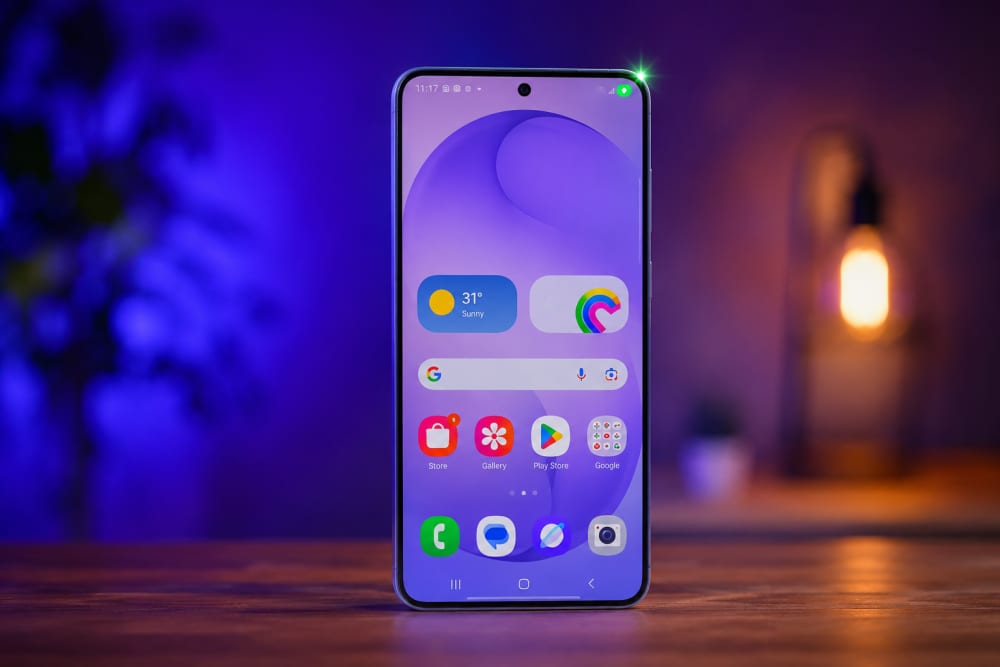
Have you ever picked up your Samsung phone, noticed a tiny flashing dot near the top of the screen, and immediately wondered, “Wait… is my phone listening to me?”
That small moment can make anyone uncomfortable. You may be scrolling through WhatsApp, checking a notification, opening your camera, or doing nothing serious at all, then suddenly a tiny green dot appears near the top corner of your Samsung screen.
I remember the first time I noticed it on my own Samsung device. I had just finished replying to a WhatsApp message, then a small green indicator appeared at the top of the screen. My first thought was not technical at all. It was simple fear: is my camera on?
Like many people, I closed my apps, pulled down the notification panel, checked recent apps, and even restarted the phone. The dot disappeared, but the question remained in my mind: was that a warning sign, a bug, or something more serious?
After checking Samsung and Android privacy documentation, I learned that the dot is not there to scare you. It is actually one of the most important privacy features on modern Samsung Galaxy phones.
That small flashing dot is your phone’s way of saying: an app is currently using your camera, microphone, or both.
In many cases, that is completely normal. But in a few situations, it is also a useful early warning that you should review your app permissions.
Quick Navigation
Tap any section below to jump straight to the part you need.
- ➜ What Is the Small Flashing Dot on Samsung Phones?
- ➜ Why Samsung Added This Privacy Feature
- ➜ What the Green Dot Means
- ➜ What About the Orange Dot?
- ➜ How to Check Which App Is Using Your Camera or Microphone
- ➜ Normal Dot or Suspicious Dot?
- ➜ How to Protect Your Privacy on Samsung
- ➜ Common Myths About the Dot
- ➜ Final Thoughts
What Is the Small Flashing Dot on Samsung Phones?
The small dot you see near the top-right area of your Samsung Galaxy screen is a privacy indicator.
Samsung explains that Galaxy devices display a green indicator when an app accesses the camera or microphone. Android’s own documentation also describes privacy indicators as a transparency feature that appears when camera or microphone access is active.
In simple language, your phone is telling you, “Something is using a sensitive part of your device right now.”
That sensitive part may be:
- Your camera
- Your microphone
- Sometimes both at the same time
This matters because your camera and microphone are not ordinary phone features. They can capture your face, your room, your voice, your conversations, your surroundings, and sometimes even personal information around you.
So Samsung shows the dot to make sure apps are not using these tools silently without you noticing.
Why Samsung Added This Privacy Feature
Modern phones are powerful. They are also deeply personal.
Your Samsung phone may contain your M-PESA messages, bank apps, family photos, WhatsApp conversations, work emails, school notes, location history, passwords, and private voice notes. That is why privacy features are no longer optional extras. They are basic protection.
For years, many users gave apps permissions without thinking too much about it. A simple game would ask for microphone access. A photo editing app would ask for camera access. A random flashlight app would ask for permissions that made no sense.
The problem is that many people click “Allow” quickly just to continue using the app.
Samsung’s privacy indicator helps reduce that silent risk. Instead of hiding camera or microphone activity deep inside settings, it places a visible signal directly on the screen.
That tiny dot creates awareness. You may not read privacy policies every day, but you will notice a bright dot sitting at the top of your phone.
What the Green Dot Means on a Samsung Phone

On Samsung Galaxy devices, the green dot usually means an app is currently accessing your camera, microphone, or both.
You may see it when you are doing normal activities such as:
- Opening the Camera app
- Taking a photo
- Recording a video
- Joining a WhatsApp video call
- Using Zoom, Google Meet, or Microsoft Teams
- Scanning a QR code
- Recording a voice note
- Using speech-to-text
- Talking to a voice assistant
In these cases, there is usually nothing to fear. The dot appears because the phone is doing exactly what you asked it to do.
For example, if you are on a WhatsApp video call, your camera and microphone are expected to be active. If you are recording a TikTok or Instagram Reel, the indicator is also expected.
The dot becomes important when it appears while you are not doing anything that should require the camera or microphone.
What About the Orange Dot?

Some users also talk about an orange dot. This can confuse people because different phone brands and software versions display privacy indicators slightly differently.
On iPhones, for example, orange is commonly associated with microphone access, while green is associated with camera access. On Samsung Galaxy and modern Android devices, the main privacy indicator is commonly shown as green, and it can represent camera or microphone activity depending on what is being used.
So if you see people online saying “orange means microphone,” understand the context. They may be talking about an iPhone, another Android skin, or a different software version.
For Samsung Galaxy users, the safest thing is not to rely only on colour. Instead, swipe down and tap the indicator to see exactly which app is using the camera or microphone.
How to Check Which App Is Using Your Camera or Microphone
This is the part every Samsung user should learn. Do not just stare at the dot and panic. Check what caused it.
Here is the simple method:
- When the green dot appears, swipe down from the top of the screen.
- Open the notification or Quick Settings panel.
- Tap the privacy indicator.
- Your phone should show which app is using the camera or microphone.
- If needed, tap again or go to settings to manage permissions.
You can also review permissions manually through your phone settings.
On many Samsung Galaxy devices, go to:
Settings → Security and privacy → Privacy → Permission manager
Depending on your One UI version, the wording may be slightly different. Some devices may show:
Settings → Privacy → Permission manager
Inside Permission Manager, check sensitive categories such as Camera, Microphone, Location, Contacts, Phone, SMS, and Files.
When you open the Camera or Microphone, Samsung will show apps that have permission. You can then choose whether each app should be allowed all the time, allowed only while using the app, asked every time, or denied.
You may also like to read about;
Normal Dot or Suspicious Dot? Here Is How to Tell
Most of the time, the Samsung flashing dot is normal. But you should still know the difference between harmless activity and suspicious activity.
It Is Usually Normal When...
- You have opened the Camera app.
- You are on a video call.
- You are recording audio or video.
- You are using a scanner app.
- You are using voice typing.
- You are using a voice assistant.
In these situations, the dot is expected because the app needs the camera or microphone to work.
You Should Investigate When...
- The dot appears when the phone is idle.
- The dot flashes repeatedly without a clear reason.
- The app shown is unfamiliar.
- A simple app requests camera or microphone access for no sensible reason.
- Your battery drains unusually fast, along with strange permission activity.
- Your phone heats up when you are not using heavy apps.
One example is a calculator app asking for microphone access. Another is a wallpaper app asking to use your camera. That does not automatically prove the app is malicious, but it is enough reason to pause and review.
Good privacy is not about panic. It is about paying attention.
How to Protect Your Privacy on Samsung
The flashing dot is useful, but it is only one part of phone security. You still need good habits.
1. Review App Permissions Regularly
Every few months, open Permission Manager and check which apps can use your camera and microphone.
Remove access from apps that do not need it. A shopping app may need camera access for scanning a QR code, but it does not need microphone access all the time.
2. Use “Allow Only While Using the App”
Where possible, avoid giving sensitive permissions permanently.
For camera and microphone access, “Allow only while using the app” is usually safer than always allowing access.
3. Delete Apps You No Longer Use
Old apps are easy to forget. But forgotten apps can still carry permissions, background services, or outdated security risks.
If you installed an app once and have not opened it in months, ask yourself whether it still deserves space on your phone.
4. Install Apps from Trusted Sources
Samsung and Google both encourage users to be careful with apps from unknown sources.
Downloading APK files from random websites can expose your phone to risky apps, fake updates, spyware, and aggressive adware.
5. Keep Your Galaxy Phone Updated
Updates are not just about new features. They also patch security weaknesses.
Go to:
Settings → Software update → Download and install
If an update is available, install it when you have enough battery and a stable internet connection.
6. Turn On Samsung Auto Blocker If Available
Samsung Auto Blocker is available on supported Galaxy devices running newer One UI versions. Samsung says it helps protect Galaxy devices by blocking threats such as app installations from unauthorised sources and other suspicious activity.
You can check it here:
Settings → Security and privacy → Auto Blocker
If your phone supports it, turning it on can add another layer of protection, especially if you do not usually install apps outside the Play Store or Galaxy Store.
7. Use the Privacy Dashboard
The Privacy Dashboard gives you a clearer view of how apps have accessed sensitive permissions.
It is helpful because you do not have to guess. You can check which apps accessed your camera, microphone, location, and other permissions recently.
Common Myths About the Samsung Flashing Dot
Myth 1: “The Dot Means My Phone Has Been Hacked”
Not always. In most cases, the dot appears because a normal app is using the camera or microphone.
If you opened the camera, joined a video call, recorded a voice note, or used voice typing, the dot is expected.
Myth 2: “The Dot Itself Is a Virus Warning”
No. The dot is not an antivirus alert.
It is a privacy indicator. It tells you that sensitive hardware is being used, but it does not automatically mean the app is dangerous.
Myth 3: “If I Ignore It, Nothing Can Go Wrong”
That is also not the best mindset.
Most dot appearances are harmless, but ignoring the indicator every time defeats its purpose. It is better to understand what normal looks like so that unusual activity stands out quickly.
Myth 4: “Only Samsung Phones Have This Feature”
No. Privacy indicators are part of modern Android privacy protections, and other Android devices also use similar alerts.
Samsung’s version is integrated into Galaxy phones through One UI and Samsung’s privacy controls.
Why This Tiny Dot Matters More Than People Think
Small privacy features often look unimportant until something goes wrong.
The Samsung flashing dot matters because it gives ordinary users real-time visibility. You do not need to be a cybersecurity expert. You only need to notice when something private is being accessed.
That is powerful.
Many people only think about phone security after losing money, getting hacked, or seeing strange activity. But privacy indicators help you develop awareness before a problem becomes serious.
That small dot is not just a dot. It is a quiet reminder that your phone is watching app behaviour on your behalf.
My Final Thoughts
The next time you notice a small flashing dot on your Samsung phone, do not panic.
In most situations, it simply means an app is using your camera or microphone. That could be completely normal if you are on a call, recording a video, scanning a QR code, or using voice typing.
But do not ignore it either.
Swipe down, tap the indicator, and check which app is responsible. If the app makes sense, continue using your phone normally. If it does not make sense, review its permissions or uninstall it.
My own lesson from seeing that dot for the first time was simple: privacy is easier to protect when your phone explains what is happening.
That tiny flashing dot may look small, but the message behind it is big:
Your camera and microphone are private, and you deserve to know when they are being used.
References
- Samsung Support: How to See Which Apps Use Your Camera or Microphone
- Samsung Support: Know What the Green Dot at the Top of Your Screen Means
- Android Open Source Project: Privacy Indicators
- Google Android Help: Check If Your Android Camera or Microphone Is On or Off
- Google Android Help: Manage Permissions from the Privacy Dashboard
- Samsung Knox: Security and Privacy Dashboard
- Samsung Knox: Samsung Auto Blocker
About the author
Caleb Muga is the founder of SurgeTechKnow, an ICT professional and software developer with BBIT, CCNA training, cybersecurity awareness and OPSWAT file-security training. Articles are written to simplify practical technology, cybersecurity, networking and ICT support topics for real users.
Read the full SurgeTechKnow profile →

