50 Cybersecurity Questions and Answers: Beginner-Friendly Cyber Safety Guide

Cybercrimes remain one of the aches within the digital circle. Imagine waking up, checking your phone, and seeing a message from a friend asking why you are sending strange links. Then you try to log into your email, but the password no longer works. That small moment of confusion can quickly turn into panic.
Cybersecurity feels complicated until it becomes personal. I have seen how one careless click, one reused password, or one ignored update can create a long day for an individual, a student, a small business owner, or an office team. That is why this guide keeps things practical, human, and beginner-friendly.
Why This Guide Matters
Cybersecurity is no longer a topic for IT people only. It affects how we use phones, social media, mobile money, email, school portals, business systems, and websites every day.
Reports from organizations such as CISA, Verizon, IBM, and Microsoft continue to show the same uncomfortable truth: attackers do not always need advanced tricks. Many incidents begin with weak passwords, phishing, stolen credentials, unpatched systems, unsafe apps, or poor access control.
As someone who works around ICT, websites, systems, and digital support, I have learned that the strongest security lessons are often the simplest. People do not need to fear. They need clear explanations, repeatable habits, and confidence to pause before making risky decisions.
Before We Start: The Cybersecurity Mindset
The best cybersecurity habit is not fear. It is verification. When something feels urgent, too good, too threatening, or too strange, pause and confirm through another channel.

Email, phone number, SIM card, and passwords are digital keys.
Install fewer apps, remove unused extensions, and limit permissions.
Backups and incident plans matter before trouble starts.
Urgency is one of the attacker’s favorite weapons.
The 50 Cybersecurity Questions and Answers
1. What is cybersecurity in simple words?
Cybersecurity is the practice of protecting phones, computers, networks, websites, accounts, and data from misuse. It is not only for banks, governments, or big companies. It matters to anyone who uses M-PESA, email, WhatsApp, online banking, social media, school portals, business systems, or cloud storage. A good way to understand it is this: cybersecurity is digital hygiene. Just as you lock your door, avoid strangers with suspicious stories, and keep important documents safe, you also need to protect your digital life.
2. Why should beginners care about cybersecurity?
Because most attacks start with ordinary habits, not Hollywood-level hacking. A weak password, an ignored update, a fake link, a reused PIN, or a public Wi-Fi login can create real trouble. Beginners should care because cybercriminals often target people who are busy, distracted, or trusting. The goal is not to become paranoid. The goal is to become alert enough to pause before clicking, sharing, installing, or logging in. Read Cybersecurity for Beginners: A Complete Guide to Staying Safe Online in the modern internet.
3. What is the difference between cybersecurity and information security?
Cybersecurity focuses on protecting digital systems, networks, devices, and online accounts. Information security is broader because it protects information in every form, including digital records, printed documents, verbal information, and physical files. For example, protecting a website login is cybersecurity. Locking a cabinet full of sensitive files is information security. In real workplaces, the two overlap because data usually moves between paper, people, devices, and cloud systems.
4. What is a cyber threat?
A cyber threat is anything that can harm a digital system or expose private data. It can be a phishing email, malware, stolen password, fake app, unsafe browser extension, insider misuse, unpatched software, or even an accidental mistake by a staff member. Threats do not always come from strangers far away. Sometimes the biggest risk is a rushed employee, a shared password, or a forgotten old account.
5. What is a vulnerability?
A vulnerability is a weakness that can be exploited. It can be technical, like outdated software, or human, like poor password habits. It can also be procedural, such as allowing everyone in an office to access sensitive files even when they do not need them. Verizon’s recent breach reporting shows that exploited vulnerabilities have become a major starting point for breaches, which is why updates and patching should never be treated as small issues.
6. What is malware?
Malware is malicious software designed to damage devices, steal data, spy on users, lock files, or give attackers control. Common types include viruses, ransomware, spyware, worms, trojans, and keyloggers. The safest approach is to install apps only from trusted sources, keep devices updated, avoid suspicious attachments, and use reliable security tools. Malware often hides behind something that looks useful, urgent, or entertaining.
7. What is ransomware?
Ransomware is malware that locks or encrypts files and then demands payment to restore access. It can affect individuals, schools, hospitals, businesses, and public offices. Paying does not guarantee recovery, and it may encourage more crime. The strongest protection is boring but powerful: offline or cloud backups, regular updates, limited admin access, MFA, staff awareness, and a tested recovery plan.
8. What is phishing?
Phishing is a trick where attackers pretend to be a trusted person or organization to make you reveal information, click a link, download a file, or send money. It can arrive through email, SMS, WhatsApp, social media inboxes, or phone calls. The message often creates pressure: your account will be blocked, your parcel is waiting, your payment failed, your job application needs confirmation, or your bank needs verification. When a message creates panic, slow down.
9. What is spear phishing?
Spear phishing is a targeted version of phishing. Instead of sending a general message to thousands of people, the attacker studies a specific person, company, school, or office. They may mention real names, job titles, recent events, suppliers, or internal processes. This makes the message feel genuine. The best defense is verification through a separate channel, especially before sending money, files, passwords, or confidential information.
10. What is social engineering?
Social engineering is psychological manipulation. The attacker uses trust, fear, urgency, curiosity, greed, or authority to make someone do something unsafe. For example, they may pretend to be IT support, a delivery agent, a bank officer, a boss, or a relative in trouble. Cybersecurity is not only about machines. It is also about understanding how people are persuaded.
11. What is multi-factor authentication?
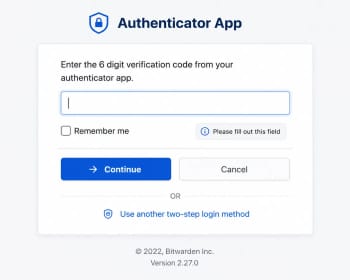
Multi-factor authentication, or MFA, means using more than one way to prove your identity when logging in. Usually, it combines something you know, like a password, with something you have, like an authenticator app or security key. CISA strongly recommends MFA because it makes stolen passwords less useful to attackers. For important accounts, MFA should be turned on immediately. Read: How Hackers Steal Passwords in Seconds
12. Is SMS verification enough?
SMS verification is better than having only a password, but it is not the strongest option. SIM swap fraud, phone theft, and message interception can weaken SMS-based security. For important accounts, an authenticator app or hardware security key is safer. Still, if SMS is the only MFA option available, use it rather than leaving the account protected by a password alone.
13. What is a strong password?
A strong password is long, unique, and hard to guess. Length matters more than strange symbols alone. A good password can be a passphrase made of unrelated words, mixed with numbers or characters where allowed. Never reuse passwords across accounts. If one website leaks your password, attackers will try the same password on email, banking, social media, and work systems.
14. Should I use a password manager?
Yes, for most people, a reputable password manager is safer than memorizing weak passwords or saving them in notebooks, chats, or plain documents. It helps you create unique passwords for every account. The master password must be strong and protected with MFA. The real benefit is that you stop reusing passwords, which is one of the most common reasons accounts get taken over.
15. What is credential stuffing?
Credential stuffing happens when attackers use leaked usernames and passwords from one website to try logging in to other websites. It works because many people reuse passwords. This is why one leaked entertainment account can lead to a stolen email or bank-related account. The defense is simple: use unique passwords and enable MFA. Read: How Hackers Steal Passwords in Seconds
16. What is password spraying?
Password spraying is when attackers try a few common passwords against many accounts instead of trying many passwords on one account. Microsoft’s recent digital defense reporting highlighted password spray attacks as a major identity threat. This is why organizations should block weak passwords, monitor failed logins, and require MFA. Read: How Hackers Steal Passwords in Seconds
17. What is a firewall?
A firewall is a security barrier that controls network traffic based on rules. It can block unwanted connections and reduce exposure to attacks. Firewalls exist on personal computers, routers, cloud systems, and enterprise networks. A firewall is helpful, but it is not magic. It must be configured properly and combined with updates, monitoring, strong identity controls, and secure behavior.
18. What is antivirus software?
Antivirus software detects, blocks, and removes malicious software. Modern antivirus tools often include behavior monitoring, web protection, ransomware protection, and cloud-based threat detection. Antivirus is useful, but it cannot protect users who constantly ignore warnings, install unknown apps, or click every attachment. Think of it as a seatbelt, not a license to drive carelessly.
19. What is endpoint security?
Endpoint security protects devices such as laptops, phones, desktops, tablets, and servers. These devices are called endpoints because they connect to a network. Endpoint security may include antivirus, encryption, device management, patching, application control, and monitoring. In many attacks, the endpoint is the first place where suspicious activity appears.
20. What is network security?
Network security protects the movement of data between devices, servers, routers, switches, cloud services, and users. It includes firewalls, secure Wi-Fi, segmentation, monitoring, VPNs, access control, intrusion detection, and good configuration. For small businesses and offices, even basic steps like changing default router passwords and separating guest Wi-Fi from office systems can reduce risk.
21. What is Wi-Fi security?
Wi-Fi security protects wireless networks from unauthorized access and spying. Use WPA2 or WPA3 encryption, strong Wi-Fi passwords, updated router firmware, and a separate guest network. Avoid leaving the router with default admin credentials. For offices, do not share the main Wi-Fi password with every visitor. Wi-Fi is convenient, but convenience should not mean open access. Read more bout Wi-Fi security.y
22. Can someone see what I do on public Wi-Fi?
On unsafe public Wi-Fi, attackers may try to monitor traffic, redirect users to fake pages, or trick devices into joining a rogue hotspot. HTTPS protects much of modern browsing, but public Wi-Fi is still risky for sensitive activities. Avoid logging into banking, work systems, or admin dashboards on unknown networks. If you must use public Wi-Fi, use trusted sites, avoid downloads, and consider a reputable VPN.
23. What is a VPN?
A VPN creates an encrypted tunnel between your device and a VPN server. It can help protect traffic on untrusted networks and hide some browsing details from local network observers. However, a VPN does not make you anonymous, does not stop phishing, and does not fix weak passwords. Choose trusted providers carefully because the VPN provider can see some connection metadata.
24. What is encryption?
Encryption turns readable data into an unreadable form unless the right key is used. It protects data on devices, in transit, and in storage. For example, HTTPS encrypts data between your browser and a website. Full-disk encryption protects files if a laptop is stolen. Encryption is one of the most important foundations of privacy and cybersecurity.
25. What is HTTPS?
HTTPS is the secure version of HTTP. It encrypts communication between your browser and a website and helps confirm that you are connected to the real site. You should be especially careful if a login, payment, or form page does not use HTTPS. Still, HTTPS alone does not prove a website is trustworthy. Scam websites can also use HTTPS, so you must check the domain and context.
26. What is two-factor authentication?
Two-factor authentication is a type of MFA that uses exactly two verification factors. For example, you enter a password and then approve a code from an authenticator app. It reduces the damage from stolen passwords. For beginners, enabling two-factor authentication on email, banking, social media, cloud storage, and admin accounts is one of the highest-impact security steps.
27. What is zero trust?
Zero trust is a security model based on the idea that no user, device, or network should be trusted automatically. Every access request should be verified based on identity, device health, location, risk, and permission. In simple language, zero trust means: do not assume someone is safe just because they are inside the office network. Verify first, then allow only what is needed.
28. What is the principle of least privilege?
Least privilege means giving users only the access they need to do their work, and nothing more. A receptionist may not need database admin rights. A student account should not access staff records. A blog editor may not need server control. This limits damage when an account is compromised or when someone makes a mistake.
29. What is patch management?
Patch management is the process of updating software, operating systems, plugins, apps, firmware, and servers to fix known weaknesses. Many attacks succeed because systems remain outdated long after fixes are available. For websites, patching includes CMS updates, plugin updates, theme updates, framework updates, and server package updates. Delaying updates can turn a known weakness into an open door.
30. Why are software updates important?
Updates often fix security vulnerabilities that attackers already know about. Ignoring them is like leaving a broken lock on your door after everyone has heard about it. Updates can also improve stability and performance. Before major updates, back up important data, but do not use backup concerns as an excuse to stay vulnerable forever.
31. What is a backup?
A backup is a separate copy of important data that can be restored if the original is lost, deleted, corrupted, encrypted by ransomware, or destroyed. Good backups follow the 3-2-1 idea: three copies, two types of storage, and one copy offsite or offline. A backup is only useful if you test restoration. Many people discover too late that their backup was empty, outdated, or inaccessible.
32. What is cloud security?
Cloud security protects data, apps, and services hosted online through providers such as cloud storage, hosting platforms, or SaaS tools. The cloud provider secures part of the system, but the user still has responsibilities such as strong passwords, MFA, access control, correct sharing settings, and monitoring. Many cloud incidents happen because files are shared publicly by mistake.
33. What is data privacy?
Data privacy is about controlling how personal or sensitive information is collected, used, stored, shared, and deleted. Cybersecurity protects the systems; privacy protects the rights and expectations around the data itself. For a website owner, privacy means explaining what data you collect, why you collect it, and how users can contact you. Good privacy builds trust.
34. What is a data breach?
A data breach happens when confidential, personal, or protected data is accessed, exposed, copied, stolen, or shared without authorization. IBM’s 2025 breach-cost reporting estimated the global average cost of a breach at about USD 4.4 million, showing that breaches can be financially painful. For individuals, the cost may be identity theft, stolen money, stress, or reputational harm.
35. What should I do if my account is hacked?
First, change the password on a clean device. Then sign out of all sessions, enable MFA, check recovery email and phone numbers, review recent activity, and remove suspicious connected apps. Warn contacts if the attacker sent messages from your account. If money or identity documents are involved, contact the relevant bank, service provider, or authority quickly.
36. What is identity theft?
Identity theft happens when someone uses your personal information to pretend to be you. They may open accounts, borrow money, take over profiles, scam your contacts, or access services in your name. Protect your ID numbers, phone number, email, SIM card, and financial details. Share documents only when necessary and watermark copies when appropriate.
37. What is SIM swap fraud?
SIM swap fraud happens when a criminal tricks or corrupts a mobile provider's process to move your phone number to another SIM card. Once they control your number, they may receive SMS codes and reset accounts. Protect yourself by using app-based MFA where possible, setting mobile account security controls, watching for a sudden loss of network connectivity, and acting quickly if your SIM stops working unexpectedly.
38. What is a browser extension risk?
Browser extensions can read or modify what happens in your browser depending on their permissions. A bad or compromised extension may track browsing, steal data, inject ads, redirect searches, or capture sensitive information. Install only what you need, check permissions, remove unused extensions, and avoid unknown extensions promising unrealistic features. Read more about: The Hidden Dangers of Browser Extensions: What They Can See, Steal, and Chan.ge
39. What is a fake app?
A fake app imitates a real app or offers a tempting service while hiding harmful behavior. It may steal logins, request unnecessary permissions, show aggressive ads, or spy on users. Download apps from trusted stores, check developer names, read reviews carefully, and avoid APKs from random links. If an app asks for permissions unrelated to its purpose, pause.
40. What is a keylogger?
A keylogger records what a user types, which may include passwords, messages, and financial details. It can be software-based or hardware-based. Protection includes keeping devices clean, avoiding unknown downloads, using security software, enabling MFA, and being careful on shared computers. Password managers can also reduce the typing of sensitive passwords.
41. What is spyware?
Spyware secretly watches user activity or collects information. It may track browsing, messages, location, files, or login details. Some spyware hides inside fake apps, cracked software, or malicious links. Warning signs may include unusual battery drain, unknown apps, strange permissions, high data usage, or device overheating. The safest response is to remove suspicious apps and scan the device.
42. What is an insider threat?
An insider threat comes from someone who already has access, such as an employee, contractor, partner, or student. It can be intentional or accidental. A careless insider may email files to the wrong person. A malicious insider may steal data. Organizations reduce insider risk through least privilege, logging, training, clear policies, and quick removal of access when someone leaves.
43. What is security awareness training?
Security awareness training teaches people how to recognize and avoid common risks like phishing, weak passwords, unsafe downloads, and data mishandling. It should be practical, not boring. Good training uses real examples, short reminders, and simple reporting channels. A trained user can stop an attack before a technical tool even notices it.
44. What is incident response?
Incident response is the planned process for handling a cyber incident. It includes preparation, detection, containment, investigation, recovery, communication, and lessons learned. Without a plan, people panic and waste time. With a plan, everyone knows who to call, what to disconnect, what evidence to preserve, and how to restore services safely.
45. What is cyber hygiene?
Cyber hygiene means everyday habits that keep your digital life clean and safe. It includes strong passwords, MFA, updates, backups, careful clicking, safe downloads, secure Wi-Fi, and regular account reviews. Cyber hygiene is not glamorous, but it prevents many common problems. Small habits repeated consistently beat big promises made after a breach.
46. What is ethical hacking?
Ethical hacking is authorized security testing done to find weaknesses before criminals exploit them. The keyword is authorized. Testing systems without permission can be illegal and harmful. Ethical hackers follow rules, document findings, avoid damage, and help owners fix problems. For learners, the safe path is to practice in labs, competitions, and training systems.
47. What is penetration testing?
Penetration testing is a controlled security assessment where authorized testers simulate attacks to find weaknesses. It usually ends with a report explaining risks, evidence, and fixes. A good pentest is not just about finding flaws. It helps an organization understand what could happen, how serious it is, and what to improve first.
48. What is a security policy?
A security policy is a written rulebook for protecting systems and data. It may cover passwords, device use, email, backups, remote work, access rights, software installation, and incident reporting. Policies should be simple enough for people to follow. A policy nobody reads or understands is just decoration.
49. What is cyber insurance?
Cyber insurance helps organizations manage financial losses from certain cyber incidents. It may cover response costs, legal support, recovery, notification, and business interruption, depending on the policy. However, insurance is not a replacement for security. Many insurers require basic controls like MFA, backups, patching, and access management.
50. What cybersecurity skills should beginners learn first?
Beginners should start with networking basics, operating systems, web basics, Linux fundamentals, security principles, log reading, cloud basics, and safe scripting. They should also learn communication because security work often involves explaining risks to non-technical people. For hands-on practice, use legal labs and beginner platforms designed for learning.
51. How can a small business improve cybersecurity quickly?
Start with the highest-impact basics: enable MFA, use password managers, update systems, back up data, limit admin access, secure Wi-Fi, train staff on phishing, and document recovery steps. Review who has access to email, hosting, payment systems, and social media. Many small businesses do not need expensive tools first. They need discipline, visibility, and fewer careless gaps.
52. What is the best cybersecurity advice for everyday users?
Pause before you click, protect your email account like a master key, use unique passwords, turn on MFA, update your devices, back up your data, and verify urgent requests through another channel. Do not chase every shiny security tool while ignoring the basics. Cybersecurity is not about fear. It is about making yourself a harder target than you were yesterday.
Practical Cybersecurity Checklist
Here is a simple checklist you can apply today without buying anything complicated:
- Turn on MFA for email, banking, social media, hosting, and cloud accounts.
- Use a password manager and stop reusing passwords.
- Update your phone, laptop, browser, router, plugins, and apps.
- Remove apps and browser extensions you no longer use.
- Back up important files and test whether you can restore them.
- Verify urgent money, password, or document requests through another channel.
- Use separate Wi-Fi for guests if you manage an office or business network.
- Do not give admin rights to users who do not need them.
- Review account recovery emails and phone numbers regularly.
- Teach family members and staff how phishing looks in real life.

References and Further Reading
These sources were used to support the article’s defensive cybersecurity guidance and current threat context.
About the author
Caleb Muga is the founder of SurgeTechKnow, an ICT professional and software developer with BBIT, CCNA training, cybersecurity awareness and OPSWAT file-security training. Articles are written to simplify practical technology, cybersecurity, networking and ICT support topics for real users.
Read the full SurgeTechKnow profile →