Stolen Phone Protection: Smart Lock, Extend Unlock and Find My Device Settings You Should Change Today
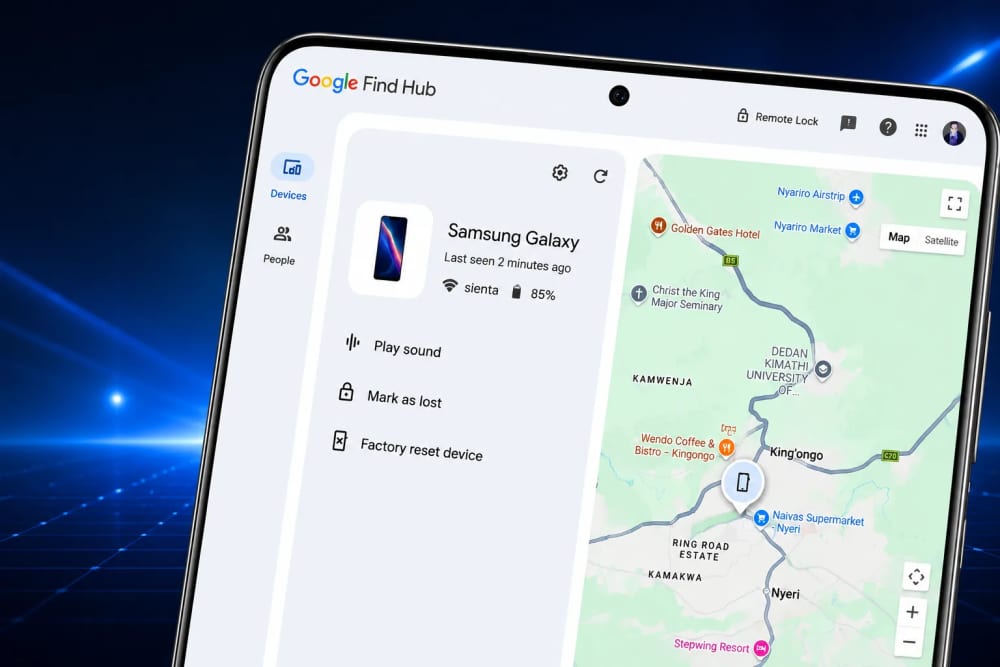
The one setting you must change right now, in case your phone is stolen, is not the one most people think about.
Most people think phone security starts when the phone is already missing. You panic, borrow another phone, try to remember your Google password, and hope the person holding your device has not already opened your WhatsApp, M-PESA messages, photos, email, or banking alerts.
But the truth is simple: stolen phone protection starts before the phone disappears.
A few minutes inside your Android settings can make the difference between a thief holding an unlocked phone full of your private life and a thief holding a locked device that is difficult to use, traceable, and ready to be secured remotely.
In this guide, I will walk you through Android's Smart Lock, now commonly called Extended Unlock, Google's Find My Device, now also presented as Find Hub in many places, and the practical stolen phone protection settings every Android user should test before trouble comes.
I am writing this for normal phone users: students, parents, busy professionals, boda riders, office workers, small business owners, and anyone who uses a phone for money, work, family, and personal life.
Quick Navigation
- ➜ Why This Setting Matters Before Your Phone Is Stolen
- ➜ Smart Lock / Extend Unlock: Helpful, But Risky If Misused
- ➜ The One Change I Recommend Right Now
- ➜ Find My Device / Find Hub: What It Can Do
- ➜ How To Test Find My Device Without Losing Your Phone
- ➜ Remote Lock, Offline Lock, and Theft Protection
- ➜ What To Do Immediately If Your Phone Is Stolen
- ➜ Final Thoughts
Why This Setting Matters Before Your Phone Is Stolen
Let us be honest. Many of us carry our whole lives inside a phone.
Your phone may contain your Google account, WhatsApp chats, saved passwords, photos, SMS verification codes, mobile money alerts, work documents, school documents, email, browser sessions, and social media accounts.
If someone grabs your phone while it is unlocked, the danger is not only the cost of the device. The real danger is what they can access before you react.
I have personally seen how fast people panic when a phone disappears. The first question is usually, "Can I track it?" But the better question should have been asked earlier: "Did I prepare this phone to protect itself if it gets stolen?"
That lesson changed the way I set up Android phones. Before I worry about wallpapers and apps, I check the lock screen, Find My Device, backup options, and whether Smart Lock or Extended Unlock is making the phone too easy to access.
Smart Lock / Extend Unlock: Helpful, But Risky If Misused
Smart Lock was designed to make Android less annoying in trusted situations. On newer Android versions, you may see it called Extend Unlock.
The idea is simple. After you unlock your phone once, Android can keep it unlocked in certain trusted conditions, such as when it is near a trusted Bluetooth device, in a trusted place, or being carried on your body.
That sounds convenient, and sometimes it is. But convenience can become a risk if the wrong person gets your phone while one of those trusted conditions is active.
Common Extended Unlock Options
- On-body detection keeps the phone unlocked while Android believes the phone is being carried.
- Trusted places keep the phone unlocked around saved locations such as home or work.
- Trusted devices: keep the phone unlocked near selected Bluetooth devices such as a smartwatch, car system, or earbuds.
The problem is not that Extend Unlock is bad. The problem is using it carelessly.
For example, if your phone stays unlocked near your smartwatch and someone takes both your phone and your bag, that trusted-device comfort may work against you. If trusted places are too broad, your phone may stay unlocked in areas where other people can access it.
My Practical Rule
Use Extend Unlock only where the convenience is truly worth the risk. For stolen phone protection, I prefer fewer trusted conditions and a stronger lock screen.
The One Change I Recommend Right Now
Open your Android security settings today and review Extend Unlock. If you do not fully trust a place, Bluetooth device, or on-body detection situation, remove it.
This is the one setting I want most people to check immediately because it directly affects whether your phone may remain unlocked after it leaves your hand.
On many Android phones, the path looks like this:
- Open Settings.
- Go to Security & privacy.
- Tap More security & privacy or search for Extend Unlock.
- Enter your PIN, pattern, password, or biometric authentication.
- Review On-body detection, Trusted places, and Trusted devices.
- Remove anything you no longer use or do not fully trust.
If your phone uses a different layout, use the Settings search bar and type Smart Lock or Extend Unlock.
After that, set a strong screen lock. A long PIN or password is better than a simple four-digit PIN that someone can guess by watching your fingers.
You May Also Like To Read About
Find My Device / Find Hub: What It Can Do
Google's Find My Device service is now also shown as Find Hub in many Android and Google pages. The name may change depending on your phone, country, app version, or Android version.
Do not be confused by the names. The main purpose remains the same: helping you locate, secure, ring, or erase a lost Android device.
Find Hub can help you:
- View the approximate location of your phone on a map.
- Play a sound if the phone is nearby.
- Secure the device remotely.
- Display a message on the lock screen.
- Erase the device if you believe you cannot recover it safely.
The important word here is safely. If the map shows the phone in a suspicious location, do not confront anyone alone. Involve local authorities or security personnel.
How To Test Find My Device Without Losing Your Phone
Many people only test Find My Device when they are already desperate. That is like testing a fire extinguisher after the fire has started.
Test it today while your phone is still in your hand.
- On your Android phone, open Settings.
- Go to Security & privacy or search for Find My Device or Find Hub.
- Make sure device location is allowed.
- Open a browser on another device and visit Google Find Hub.
- Sign in with the same Google account used on your phone.
- Confirm that your phone appears in the device list.
- Use Play sound as a safe test.
Do not test Erase device unless you truly intend to wipe the phone. Factory reset is a serious action and should be used only when protecting your data is more important than recovering the device.
Also, make sure your Google account recovery options are updated. If you cannot access your Google account during an emergency, your tracking tools become harder to use.
Remote Lock, Offline Lock, and Theft Protection
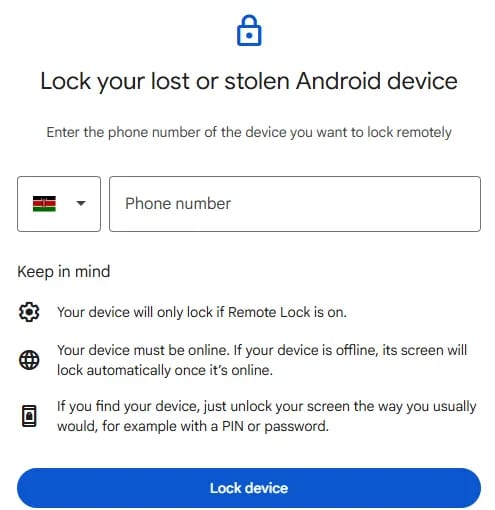
Modern Android phones include more theft protection features than many people realize.
Depending on your Android version and region, you may see options such as Theft Detection Lock, Offline Device Lock, Failed Authentication Lock, and Remote Lock.
These features are meant to reduce the time a thief has to access your personal data.
Theft Detection Lock
This feature is designed to automatically lock your screen when Android detects movement patterns that may suggest your phone has been grabbed and taken away quickly.
Offline Device Lock
A thief may try to turn off mobile data or keep the phone disconnected. Offline Device Lock helps by locking the screen when the phone remains offline under suspicious conditions.
Failed Authentication Lock
If someone repeatedly fails to unlock your phone, this feature can automatically lock it more aggressively.
Remote Lock
Remote Lock lets you lock your lost or stolen Android device using a verified phone number. This can be useful when you need to act fast and cannot immediately sign in from another device.
To check these settings, search your Android settings for Theft protection. On many phones, the path may be Settings > Google > All services > Theft protection.
What To Do Immediately If Your Phone Is Stolen
If your phone is stolen, speed matters. But do not let panic make you unsafe.
Here is a simple action plan:
- Use Find Hub immediately. Try to locate, ring, or secure the phone.
- Lock the device remotely. Add a message only if it is safe and useful.
- Change your Google password if you suspect your account is exposed.
- Contact your mobile network provider to block or replace your SIM card.
- Contact your bank or mobile money provider if financial apps or SMS codes may be at risk.
- Report the theft through the right local channels, especially if you need an official record.
- Erase the device if recovery looks unlikely and your private data is at risk.
If you erase the device, understand the trade-off. It protects your data, but it may also limit some tracking options afterward.
A Simple Stolen Phone Protection Checklist
Use this checklist today, not after the phone is gone.
- Use a strong PIN, password, or pattern.
- Avoid easy PINs such as birth years or repeated numbers.
- Review and reduce Extend Unlock trusted conditions.
- Turn on Find My Device / Find Hub.
- Test the Play Sound feature from another device.
- Turn on theft protection features available on your phone.
- Keep your Google account recovery phone and email updated.
- Back up important photos, contacts, and documents.
- Keep your Android system and Google Play services updated.
- Know how to contact your network provider quickly.
Mistakes That Make Phone Theft Worse
Many phone theft problems become worse because of small habits we ignore.
- Keeping the phone unlocked for too long.
- Using weak PINs that friends or strangers can guess.
- Leaving sensitive notifications visible on the lock screen.
- Saving passwords in notes or screenshots.
- Never test Find My Device until an emergency happens.
- Using trusted places too broadly.
My advice is simple: make your phone convenient for you, but difficult for anyone else.
My Final Thoughts
Stolen phone protection is not about living in fear. It is about being prepared.
Smart Lock or Extended Unlock can be useful, but it must be controlled carefully. Find My Device or Find Hub can be powerful, but only if it is enabled and tested before your phone goes missing.
The biggest lesson is this: do not wait for a bad day to learn your security settings.
Take five minutes today. Review Extend Unlock. Turn on Find Hub. Test Play Sound. Check theft protection. Update your recovery details.
A stolen phone is painful. But losing your private data, accounts, money access, and identity can hurt even more. Protect the phone before someone else gets the chance to test how secure it really is.
References
- Google Android Help: Find, secure, or erase a lost Android device
- Google Find Hub: Locate, lock, or erase your device
- Google Android Help: Protect your personal data against theft
- Google Blog: Android theft protection features
- Android: Find Hub guide
- Motorola Support: Extend Unlock / Smart Lock settings
About the author
Caleb Muga is the founder of SurgeTechKnow, an ICT professional and software developer with BBIT, CCNA training, cybersecurity awareness and OPSWAT file-security training. Articles are written to simplify practical technology, cybersecurity, networking and ICT support topics for real users.
Read the full SurgeTechKnow profile →

